Prepare a domain name and a vps, and resolve the domain name to the vps.
Build the pagoda and install nginx
After the pagoda and nginx are completed, return to the vps SSH window
Execute the command bash <(curl -L https://raw.githubusercontent.com/v2fly/fhs-install-v2ray/master/install-release.sh)
After execution, return to the pagoda panel,
Open the files on the left in order, as shown in the figure below
 Edit the config.json file. After opening the file, clear the contents first, then paste the following code into it and save it.
{ "log": { "loglevel": "info", "access": "/var/log/v2ray/access.log", "error": "/var/log/v2ray/error.log" }, "inbounds": [ { "port": 10000, "listen":"127.0.0.1", "protocol": "vmess", "settings": { "clients": [ { "id": "000fe881-b655-4212-b804-b00f9970d5aa", "alterId": 64 } ] }, "streamSettings": { "network": "ws", "wsSettings": { "path": "/happy" } } } ], "outbounds": [ { "protocol": "freedom", "settings": {} } ]}
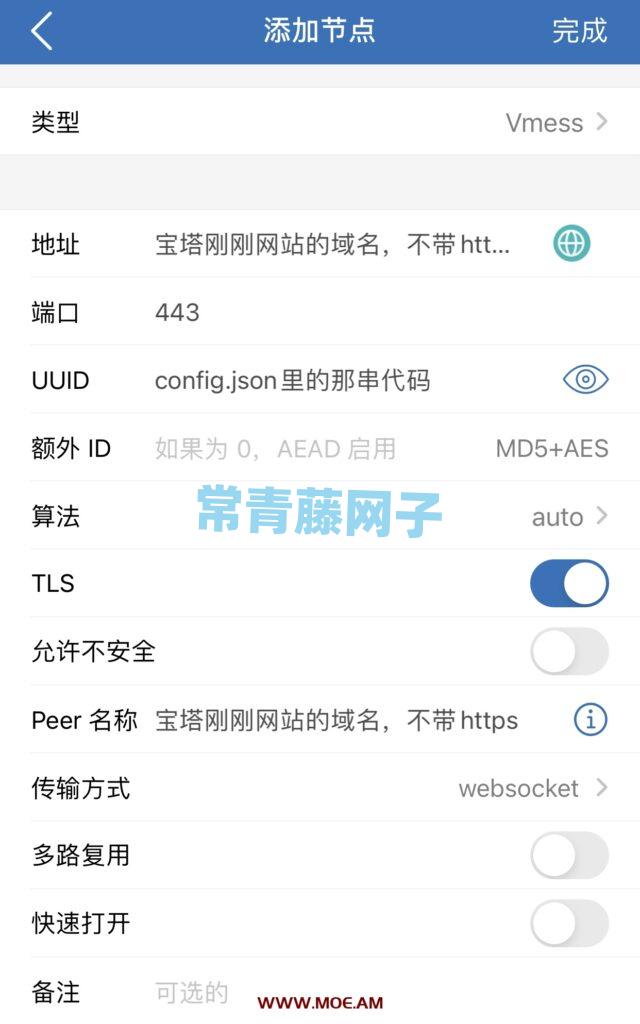
000fe881-b655-4212-b804-b00f9970d5aa in the code can be changed. For example, change some numbers. It's equivalent to a password. butThe format must be the same(The UUID in Little Rocket refers to this string of codes)
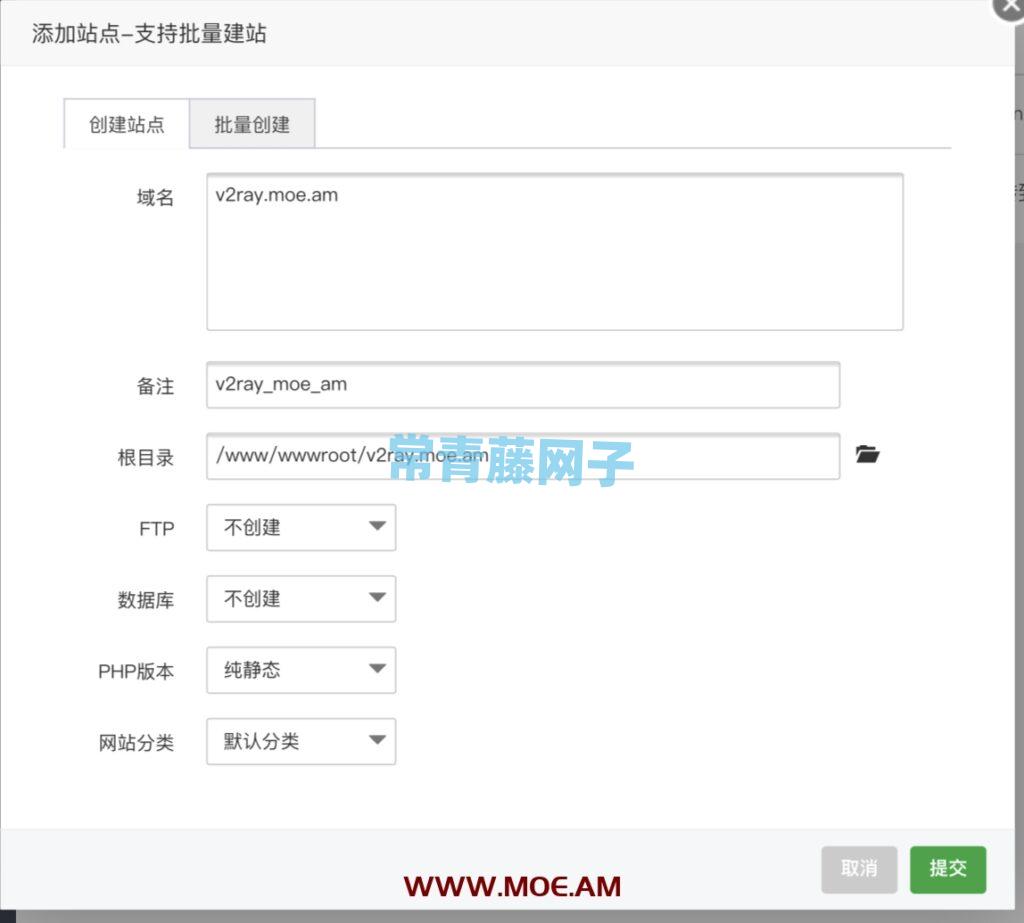
Then Baota creates a new website (the domain name is the one you parsed at the beginning of the article), as shown in the figure below (database, PHP does not matter)
First apply for an SSL certificate (needless to say this step)
Then clickConfiguration file, in the configuration filetopmostAdd the following code
# 定义变量map $http_upgrade $connection_upgrade { default upgrade; '' close;}
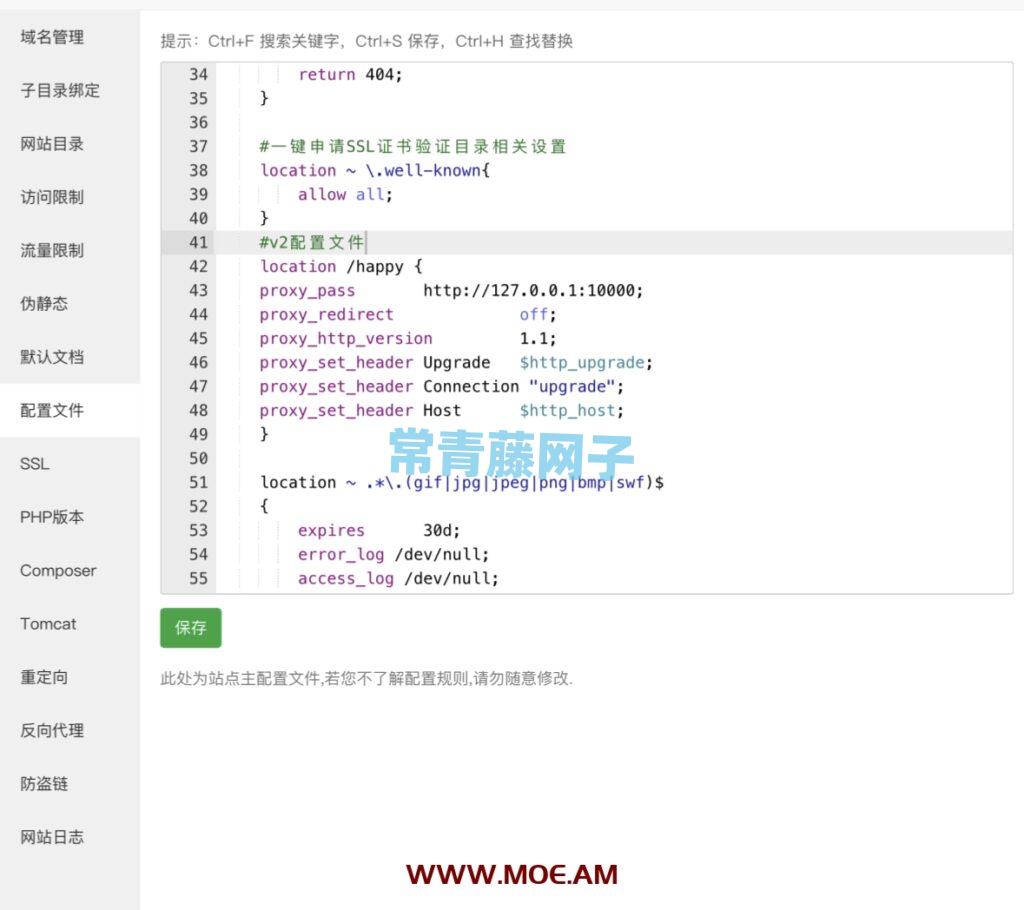
 Then add the following code at approximately this location (as shown below)
#v2配置文件 location /happy { proxy_pass http://127.0.0.1:10000; proxy_redirect off; proxy_http_version 1.1; proxy_set_header Upgrade $http_upgrade; proxy_set_header Connection "upgrade"; proxy_set_header Host $http_host; }
save
Return to vps SSH window
Start v2ray
systemctl start v2ray
Set up auto-start at power on
systemctl <span class="prism-token prism-function">enable</span> v2ray
OK, the V2ray server has been completed
Let’s talk about the ios rocket configuration:

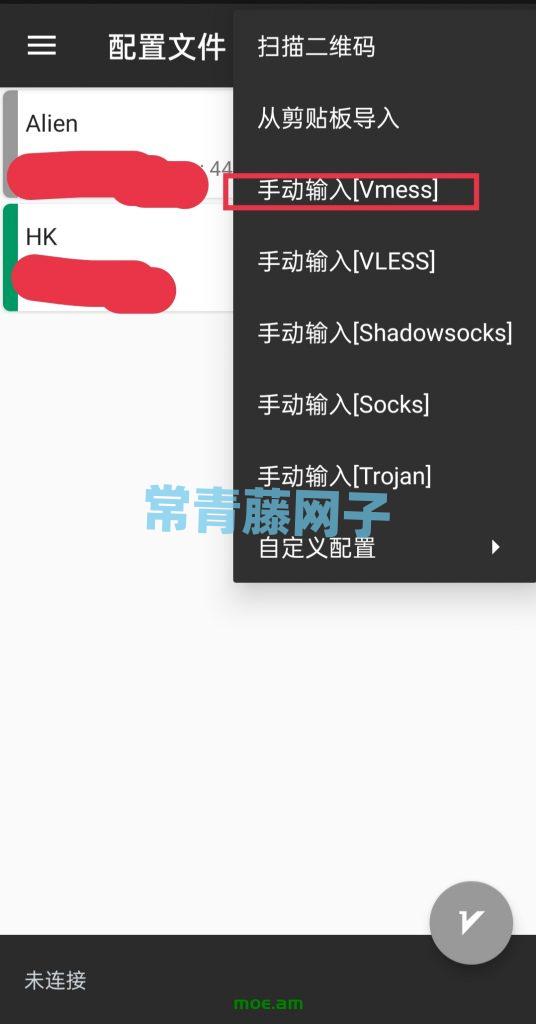
Android V2rayNG configuration:
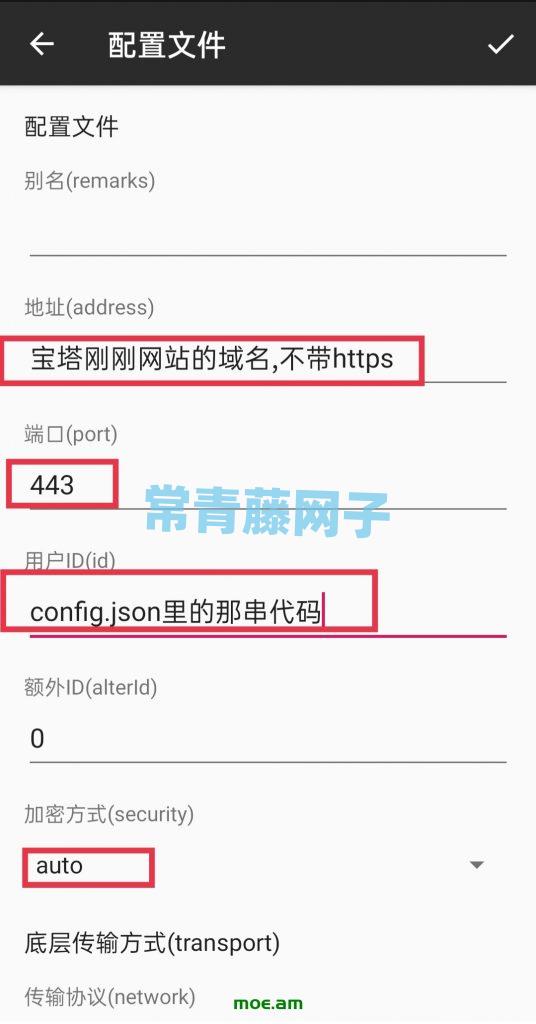
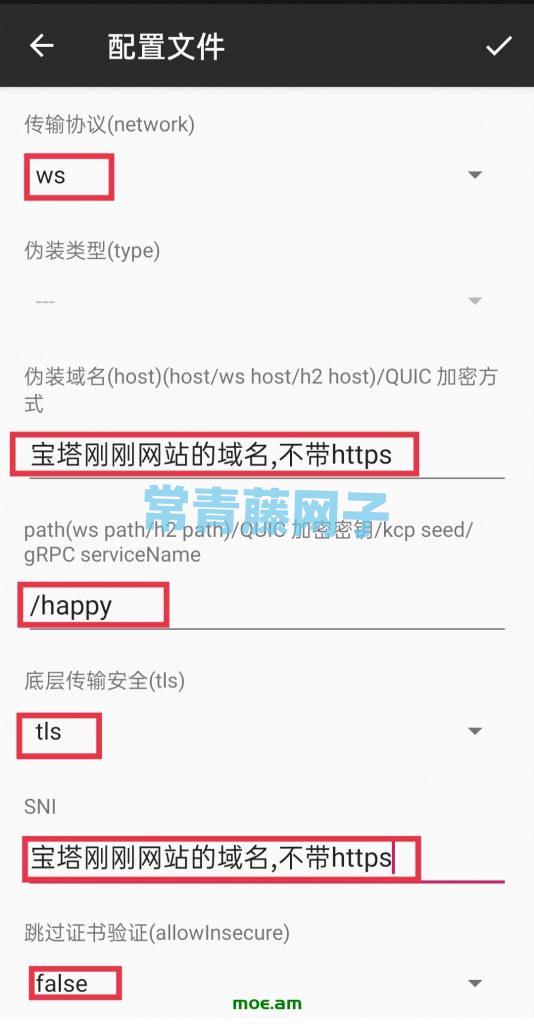
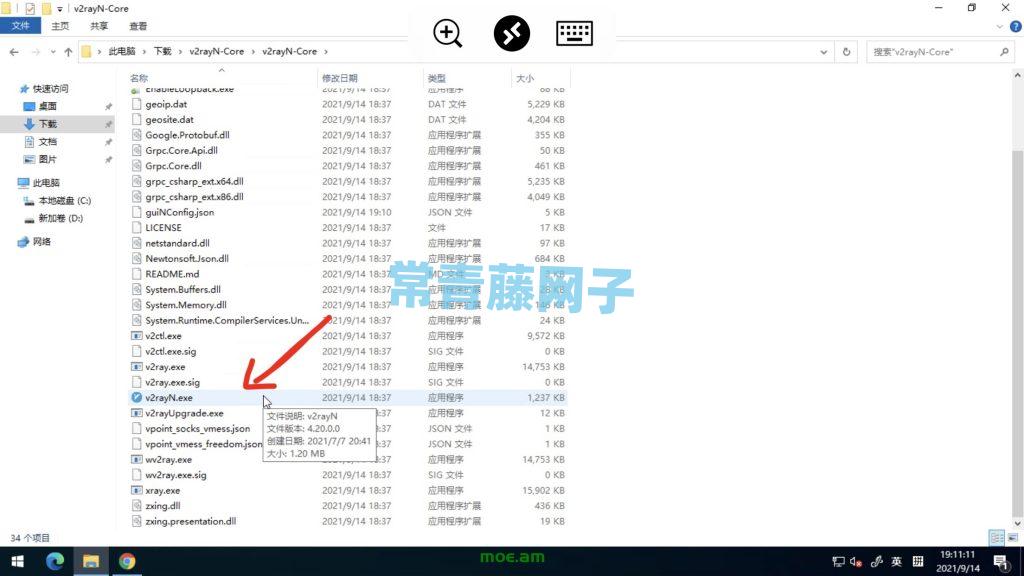
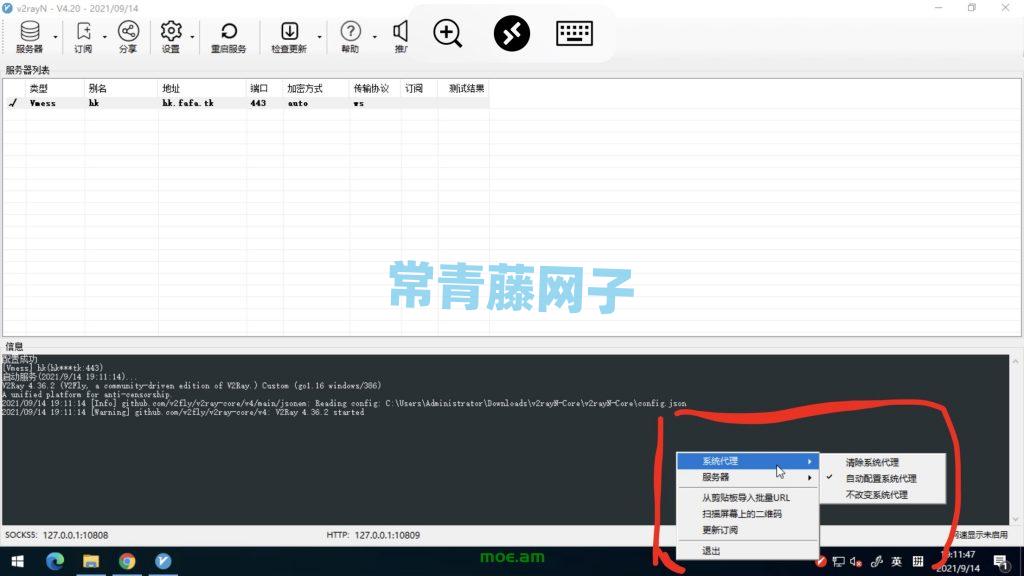
Windows V2rayN configuration:
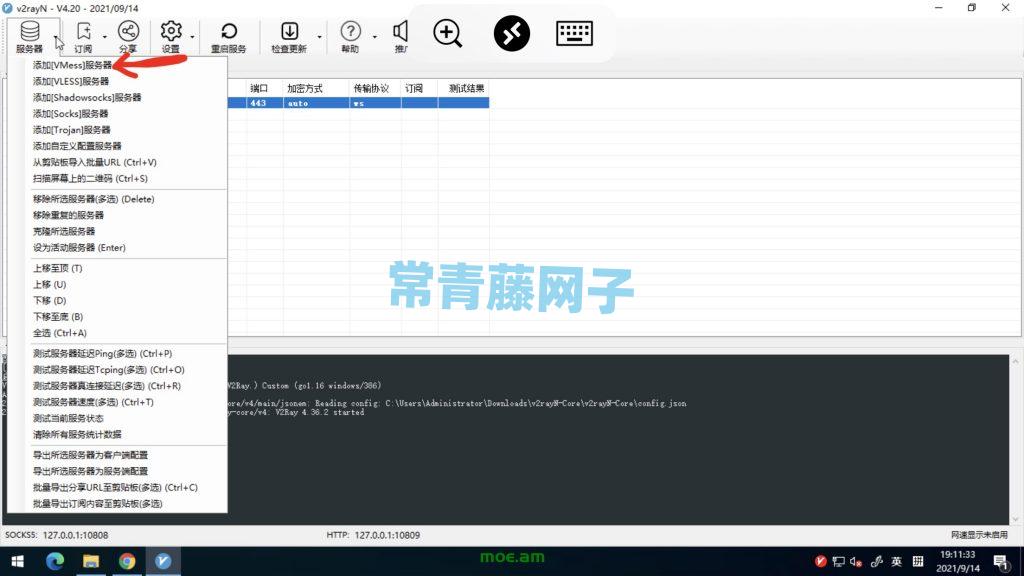
Click on the server in the upper left corner of V2rayN and addVmess protocol, the configuration is as shown above for Android.
Other commonly used commands in v2ray
## start up
systemctl start v2ray
## stop
systemctl stop v2ray
## Restart
systemctl restart v2ray
## Start automatically at boot
systemctl enable v2ray
##Uninstall v2ray
Stop v2ray first
systemctl stop v2ray
systemctl disable v2ray
Perform one-click removal again
bash <(curl -L https://raw.githubusercontent.com/v2fly/fhs-install-v2ray/master/install-release.sh) --remove