Google recently launched a major upgrade for its Gemini chatbot: after users ask questions, the system can not only answer with text, but also directly generate interactive 3D models and physical simulation scenes. This means that when users want to “see a problem,” Gemini can now do so through a rotatable, scalable, 3D visualization with parameter control.
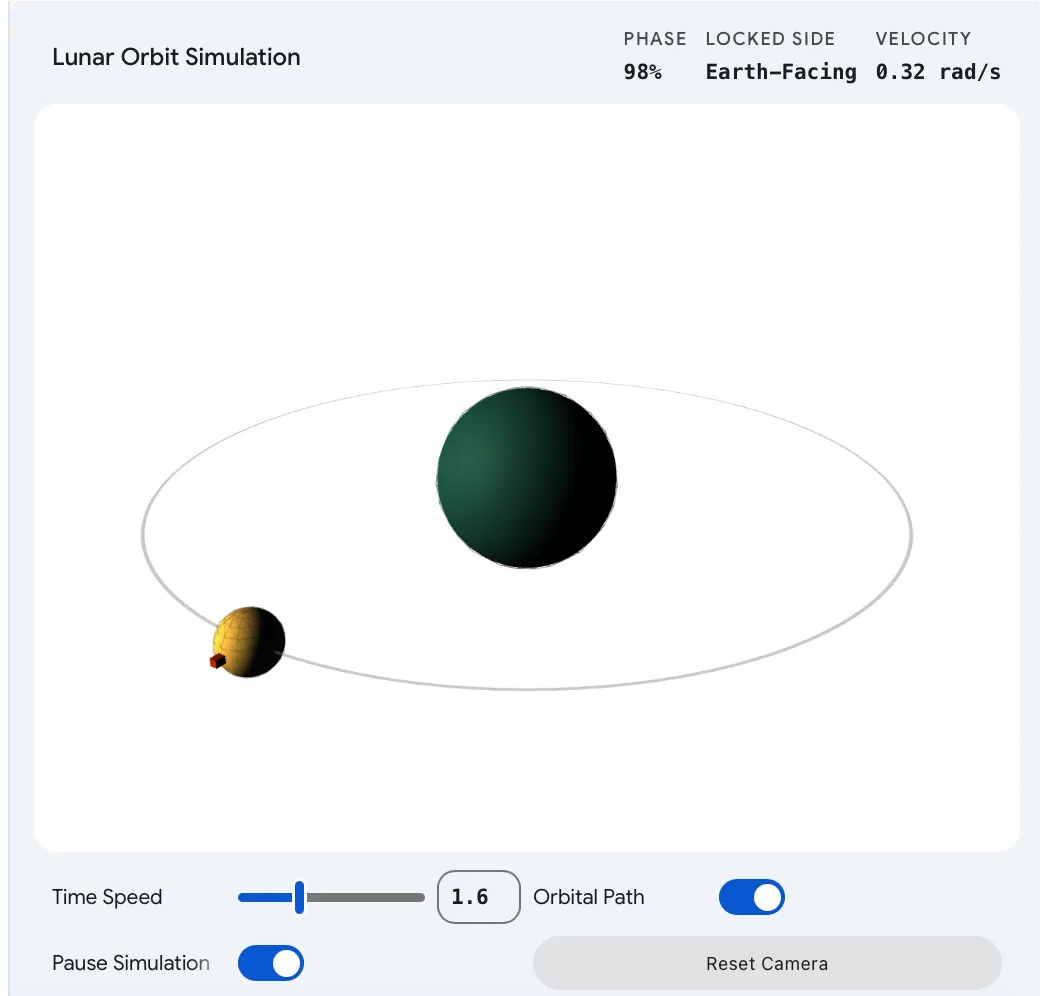
According to Google, after enabling new features, Gemini will provide multiple interaction methods at the same time when generating 3D models or simulations. Users can not only drag to rotate the model and zoom in on details, but also manually adjust variables through sliders or enter different values to observe the changes in real time. For questions involving physical processes or abstract concepts, this type of interactive visualization is expected to become a new type of answer form.
In actual experience, the reporter took "generating a simulation of the moon orbiting the earth" as an example for testing. Gemini then generates a visual three-dimensional scene: users can adjust the moon's revolution speed with sliders, hide or show the trajectory lines representing the orbit with switches, and pause or continue the demonstration with buttons. At the same time, users can also zoom and rotate the entire set of 3D models to observe the movement process from different perspectives.
Prior to this, Gemini had supported generating interactive flat images based on user prompts, but it was still limited to image-level interaction. This upgrade extends capabilities to 3D models and dynamic simulations, further enriching the means for AI-assisted understanding and presentation of complex concepts. This update also comes amid competition among large model vendors for “visual answers”: Not long ago, Anthropic introduced the ability to automatically generate charts, schematics, and other interactive visualizations for Claude, while OpenAI also added visualization tools for mathematical and scientific concepts to ChatGPT.
Currently, all Gemini app users can experience this new feature by selecting the “Pro” model. The operation path is: switch the model to Pro in the application, and then make requests to Gemini such as "Show a double pendulum system" and "Help me visualize the Doppler effect." After Gemini returns the text description, a "Show me the visualization" button will appear at the bottom of the interface. Click it to generate the corresponding 3D model or simulation scene.