If your Windows 11 system disk storage space is quickly exhausted but you can’t find the reason, it may be affected by the latest BUG. This problem is a problem with the system itself. The database log files created by the system will continue to expand, and may occupy up to more than 500GB of storage space. Storage Sense will show an abnormal increase in the usage of the system and retention categories.
Massive logs generated by Function Access Manager:
The problem occurred with a service called Capability Access Manager. This service is used to record application permissions, such as calling camera, microphone, location, screen capture and other log files. Normally, the log database is only a few MB, but some users have experienced that the log file has expanded to 70GB~200GB. In extreme cases, the database file has expanded to 513GB.
This problem mainly affects Windows 11 24H2/25H2 version. The problem is that the system disk space is swallowed up silently without obvious operation. The abnormal database log file is located at:
C:ProgramDataMicrosoftWindowsCapabilityAccessManagerCapabilityAccessManager.db-wal
How to check if you are affected:
Go to Windows 11 Settings, System, Storage, Local Disk, Show More Categories, System and Retention. If the system files and reserved storage are abnormally high, it means your system may be affected. At this time, you can check the log file volume, but the directory where db-wal is located has been permission locked and cannot be viewed directly, so we need to use the administrator mode command prompt.
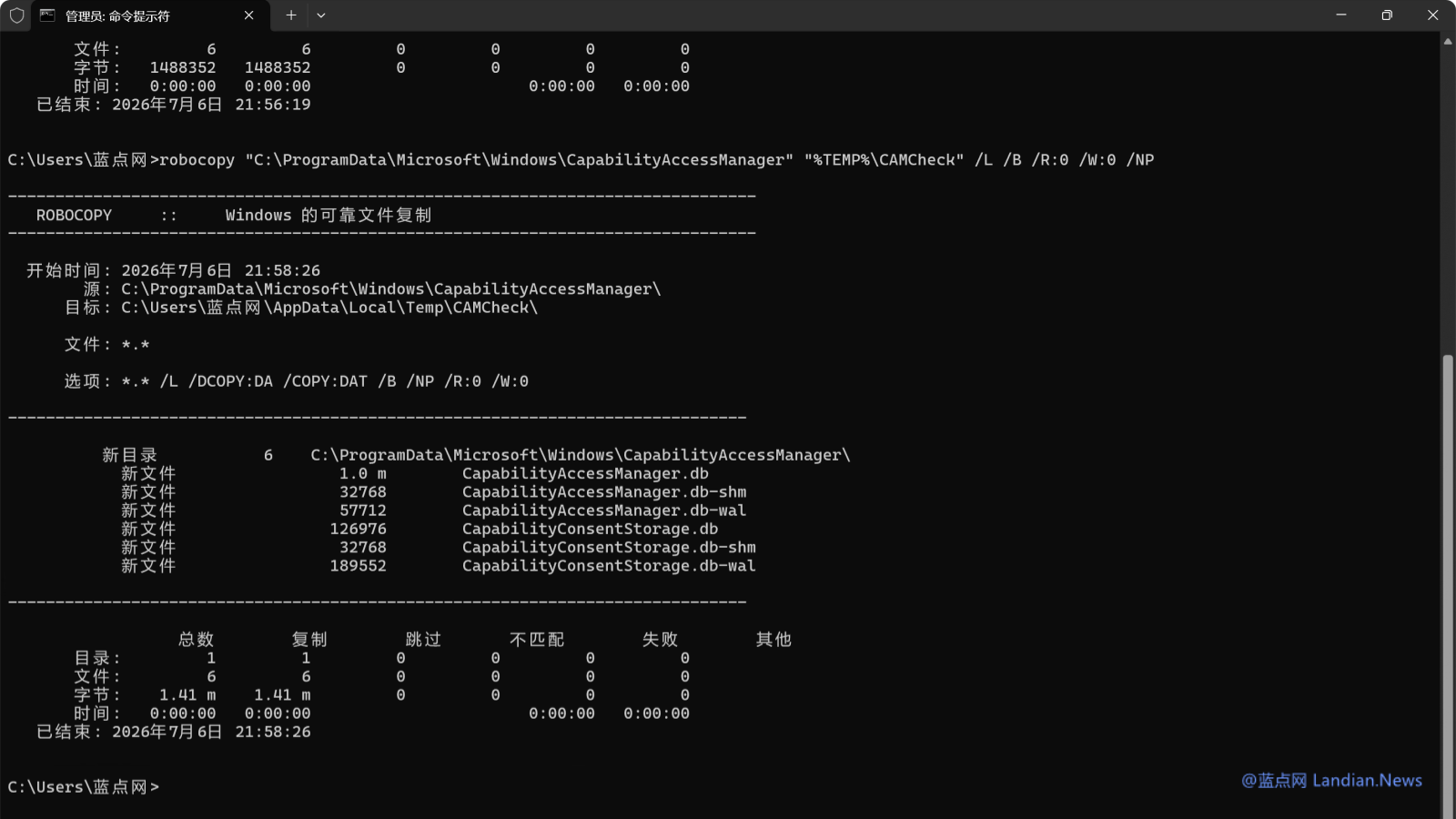
robocopy"C:ProgramDataMicrosoftWindowsCapabilityAccessManager""%TEMP%CAMCheck"/L /B /R:0 /W:0 /NP
Under normal circumstances, the database log file should be only a few MB. For example, on the test machine of Bluepoint.com, the file is only 1.41MB, which means we are not affected. If your test result shows the GB level, it is affected. However, there is currently no better solution. It is usually not recommended to delete files directly unless the system space is insufficient, so it is a good idea to directly install the latest optional updates.
How to fix this problem quickly:
Microsoft has fixed this problem in the preview update KB5095093. Microsoft said that this update improves the disk space usage of CAM files. The bug fixes contained in this update will be pushed to all users in the B-type stable version update released next week. Users who have already encountered the problem can install the preview version update in advance to solve the problem.
Users only need to go to the system update and click a few more times to check for updates. Under normal circumstances, they should see the KB5095093 preview version update (you can also click here to download the offline installation file of the update). Follow the normal process to install and restart the system. After installation, the CAM database file should be automatically cleaned and returned to its normal size.
If it still doesn't work after installing the update, you can consider opening system services, finding the Capability Access Manager Service and disabling it. Disabling it may also prevent database file expansion.