
Abstract:
The Windows 11 optional update KB5132057 released by Microsoft on November 21 brings a comprehensively restructured Windows search function. The new search function uses the native WinUI 3 interface, which opens faster, the results are presented in a single list, and allows users to adjust brightness, turn on Bluetooth and other system settings directly from the search box. This feature is being gradually rolled out on Windows 11 25H2 and 26H2. If you still don’t see it after the update, you can manually enable it through ViVeTool.
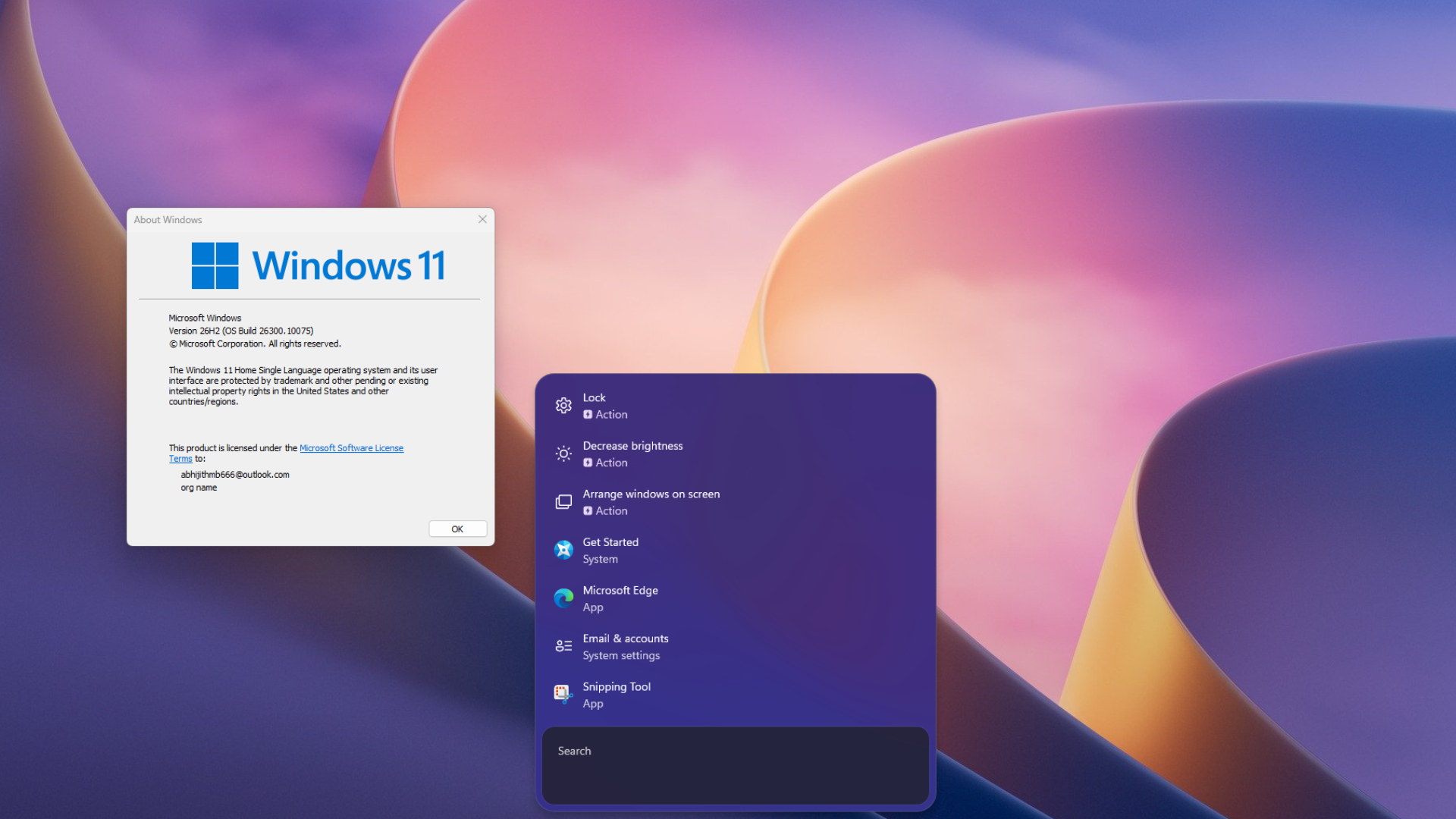
Installing KB5132057 and forcing new searches will result in one of the smoothest experiences in the operating system. New searches open instantly, with a snappy bounce animation, and there's no longer the slight delay experienced by older searches when typing.
Due to Microsoft's controlled feature push policy, some computers may temporarily not be able to get new searches even if optional updates are installed. However, the relevant code has been entered into the system with the update, and users only need to turn on the corresponding switch. The specific steps are: First, turn on "Get the latest updates as soon as possible" in "Windows Update" in "Settings", click Check for updates and install the "November 2026 Preview Update (KB5132057)", and then restart the computer. Users can press the Win plus R keys and enter winver to confirm that the system version is 26300.10075 (26H2) or 26200.10075 (25H2); if it is still 24H2, it needs to be upgraded to 25H2 or 26H2 first.
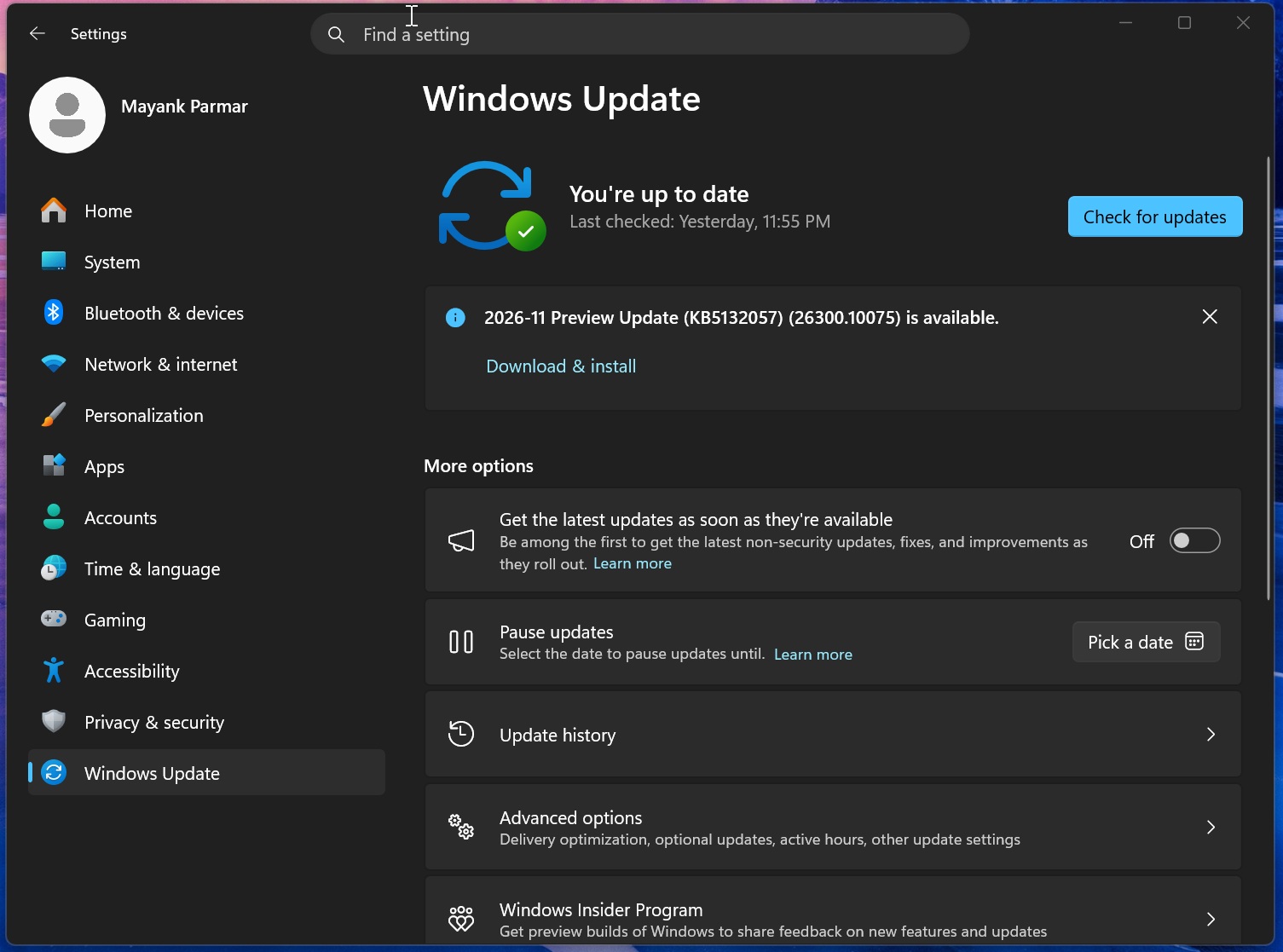
Then, users need to download the latest version from ViVeTool’s official GitHub page and extract the compressed package to the ViVeTool folder on the C drive. Then open the command prompt as an administrator, enter cd C:ViVeTool and press Enter, and then run the following commands in sequence: vivetool /enable /id:61161304, and vivetool /enable /id:58381341. The first ID is used to enable the feature pack in the November update, and the second is used to enable the new Windows Search. If you want to also enable faster, index-based searches for "This PC" in File Explorer, you can additionally run vivetool /enable /id:61188158; however, this command is not required for the new taskbar search.
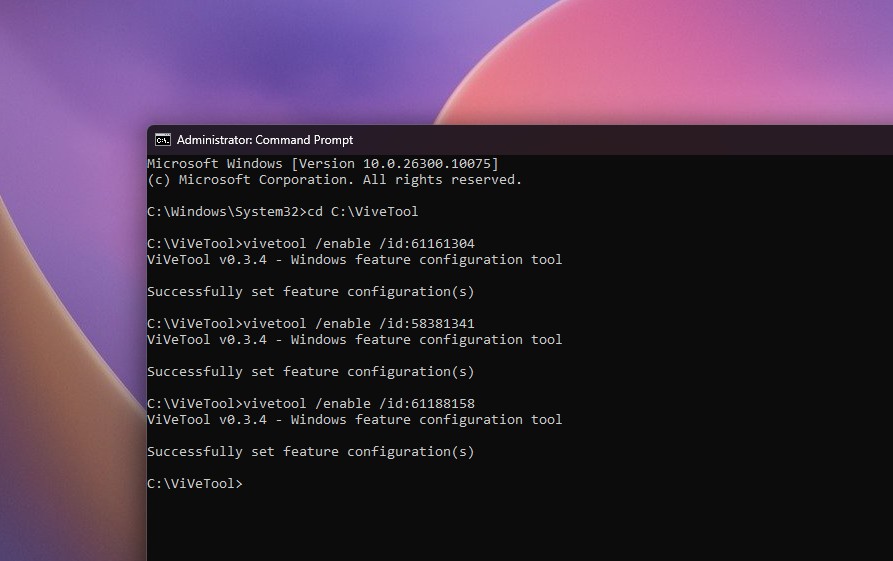
After each command is executed, the interface should display "Successfully set feature configuration(s)". After completing the operation, restart the computer, click the taskbar search icon or press Win + S to see the new search. It's important to note that new searches will currently only open from the bottom center of the screen, even if the taskbar is on the right. If the user changes his or her mind, the function can be turned off by replacing /enable with /disable in the above command and restarting. ViVeTool will enable functions that Microsoft has not yet pushed to specific devices, and the relevant ID may also become invalid in subsequent updates, so users should evaluate the risks of use by themselves.
There are significant differences between the new search and the old version. The old version of search was a large panel with a results list on the left and a larger preview pane on the right; when using the vertical taskbar, there was a lot of wasted space below the search results. The new version uses a compact list, the search box is at the bottom, and the interface size automatically adjusts according to the number of results. Microsoft rebuilt the feature with WinUI 3 and says this modern foundation makes Windows searches faster and uses resources more efficiently. Microsoft also explained that eliminating the preview pane makes sense because the vast majority of clicks in the current experience come from the results list on the left.
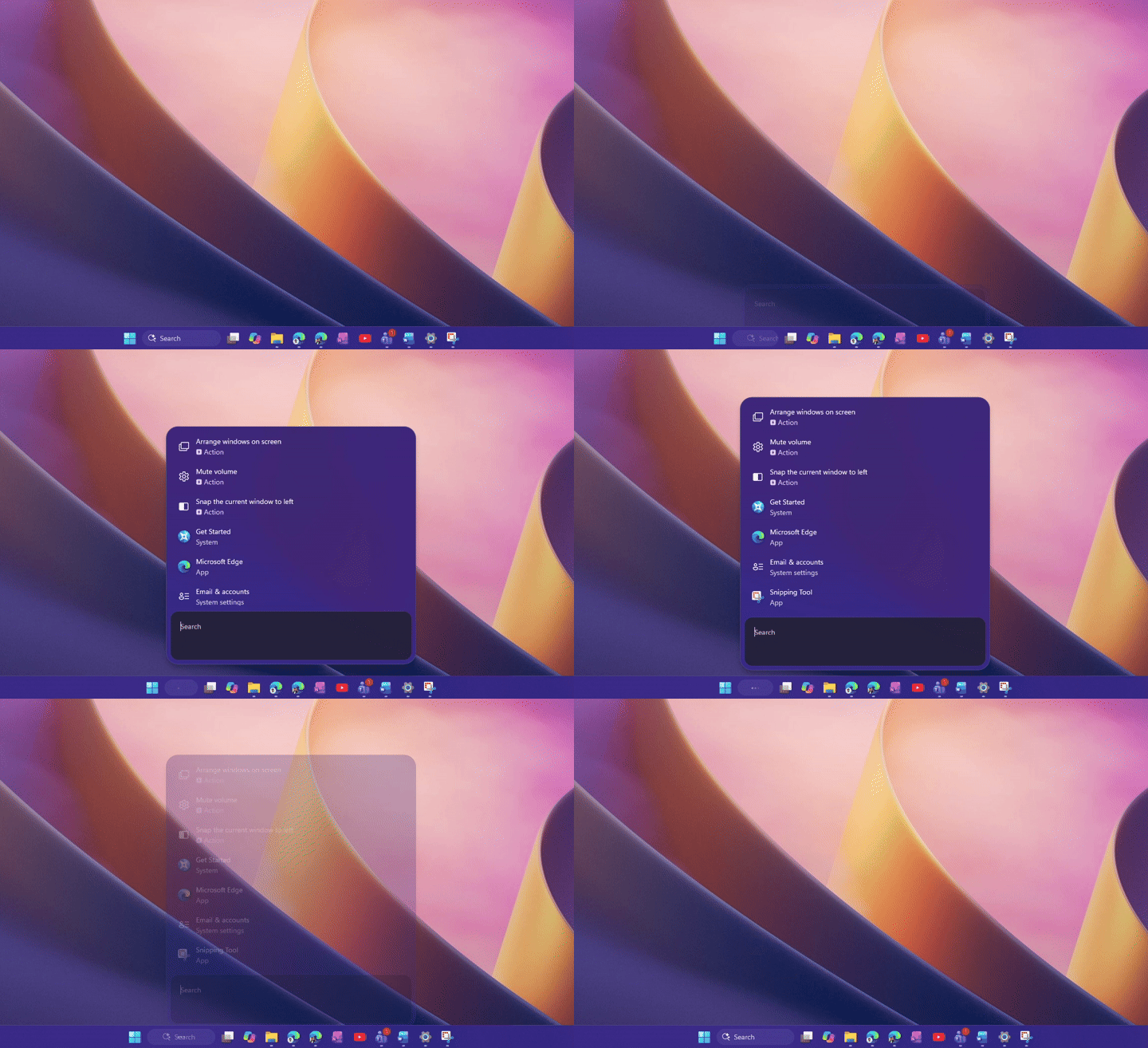
The old version of search runs based on WebView2 and will indirectly call Microsoft Edge when it is opened. Microsoft said that the new search is completely native and designed for performance. Depending on the usage scenario, memory usage can be reduced by about 15% to 20%. The author of the report stated that he is disgusted with web applications in Windows, so he very welcomes this change; after testing, the new search no longer contains the WebView2 element.
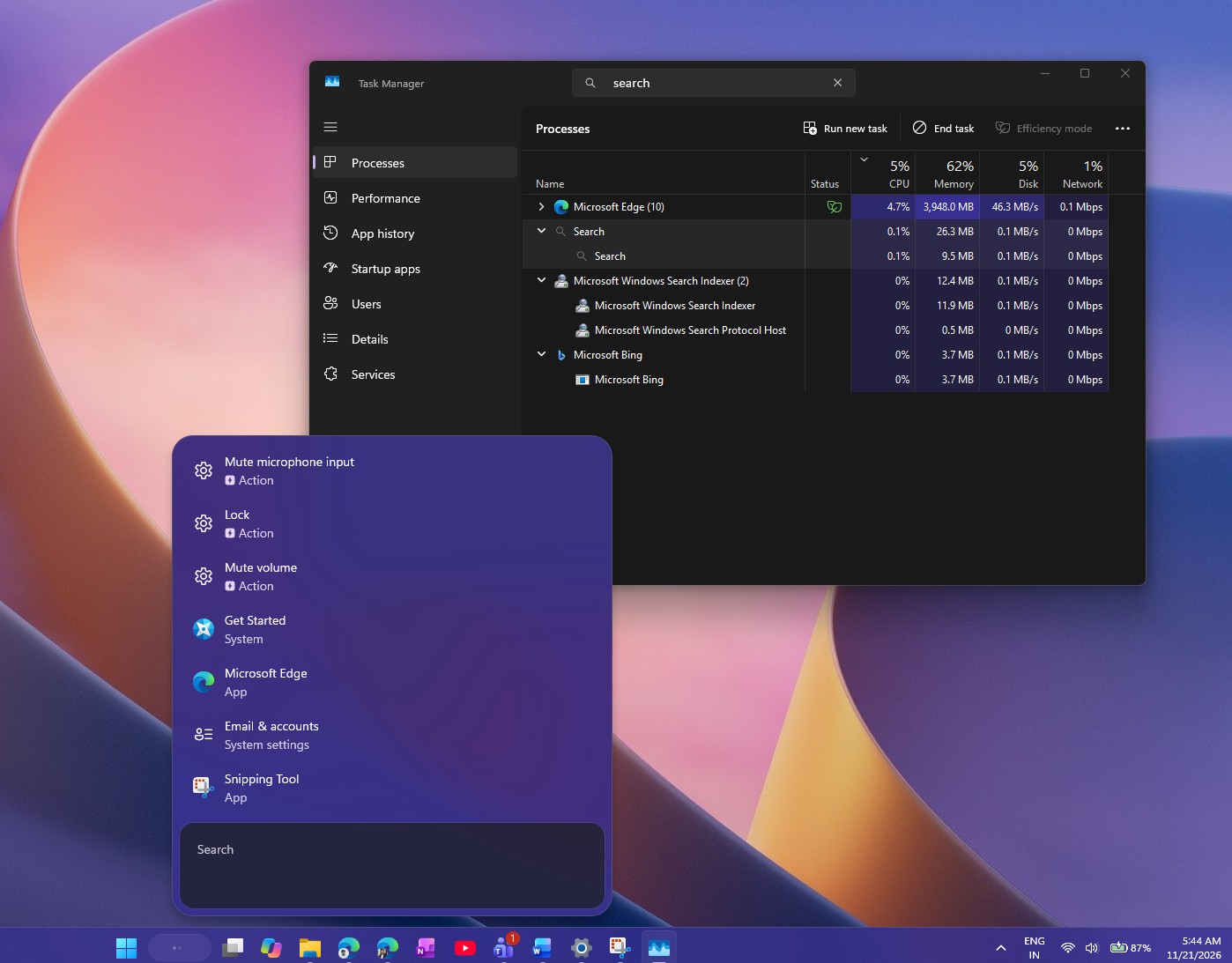
Microsoft did not stop at interface reconstruction, but also added inline operations to search. Users can complete tasks directly in the search results without having to jump to the settings page. For example, Microsoft said that users can perform operations such as "switch to dark mode", "turn on Bluetooth", "dim the screen", "mute" and "minimize all windows" through search. In testing, "increase brightness" and "decrease brightness" appear as suggested actions, and dragging the slider can indeed change the screen brightness.
The new search also displays file previews and details, including when the file was last modified, where it was saved, and who created it, and provides quick answers to weather, stocks, and factual questions. It also has improved handling of misspellings and synonyms, such as typing "blutooth" and still finding "Bluetooth." If the Android phone is connected to the computer through "Mobile Connection", users can also make calls, send text messages from the search, and use mobile operations such as "Find Phone" and "Do Not Disturb"; these functions require a supported mobile phone. Previously, the new search could open Android applications from the phone through "Mobile Connection".
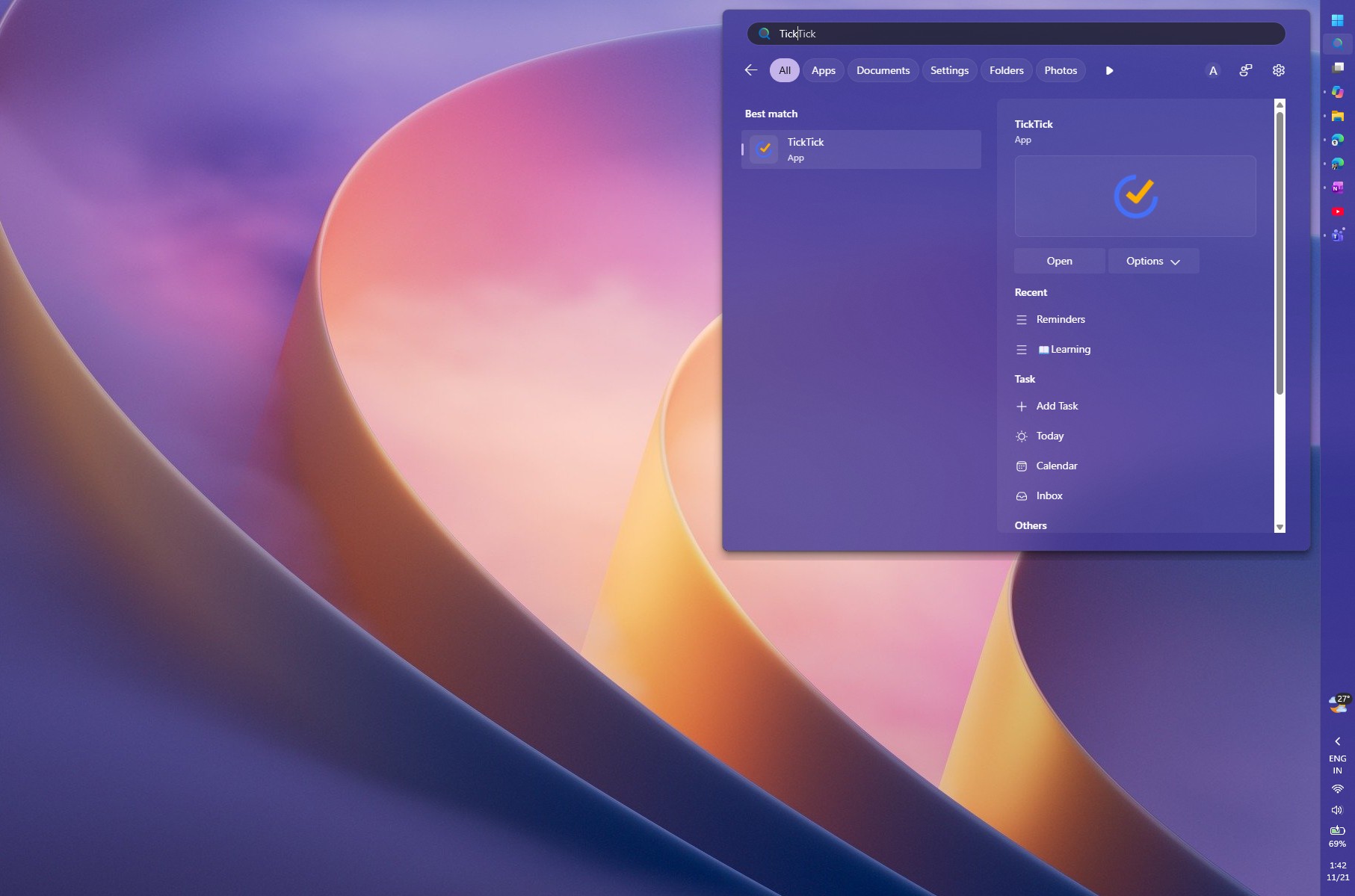
However, the new search currently only supports English and can only be opened from the taskbar; when searching from the Start menu, you will still enter the old experience. These improvements build on months of ongoing tweaks to Microsoft's search capabilities. Microsoft previously tested a switch to remove Bing results from searches, then cleaned up the MSN tiles and trivia content on the search homepage, and launched faster, Bing-free searches in the August update.
The new search still has a troubling limitation: For users with a vertical taskbar, the old search respects the taskbar position, while the new search ignores this setting and always opens from the bottom center of the screen, breaking visual and operational continuity. Microsoft is aware of this issue and stated in an announcement on October 7 that it is advancing the introduction of new search into the Start menu and making it naturally adaptable to different taskbar positions and Windows configurations.
Comments