
Abstract:
Microsoft has begun to push a new round of interface modernization in Windows 11 to users, and the first thing to change is not the start menu or taskbar, but the AutoPlay window that many users encounter almost every day. With the release of the November 2026 update, this old pop-up window that has been used since the Windows 8 era finally received a complete redesign.
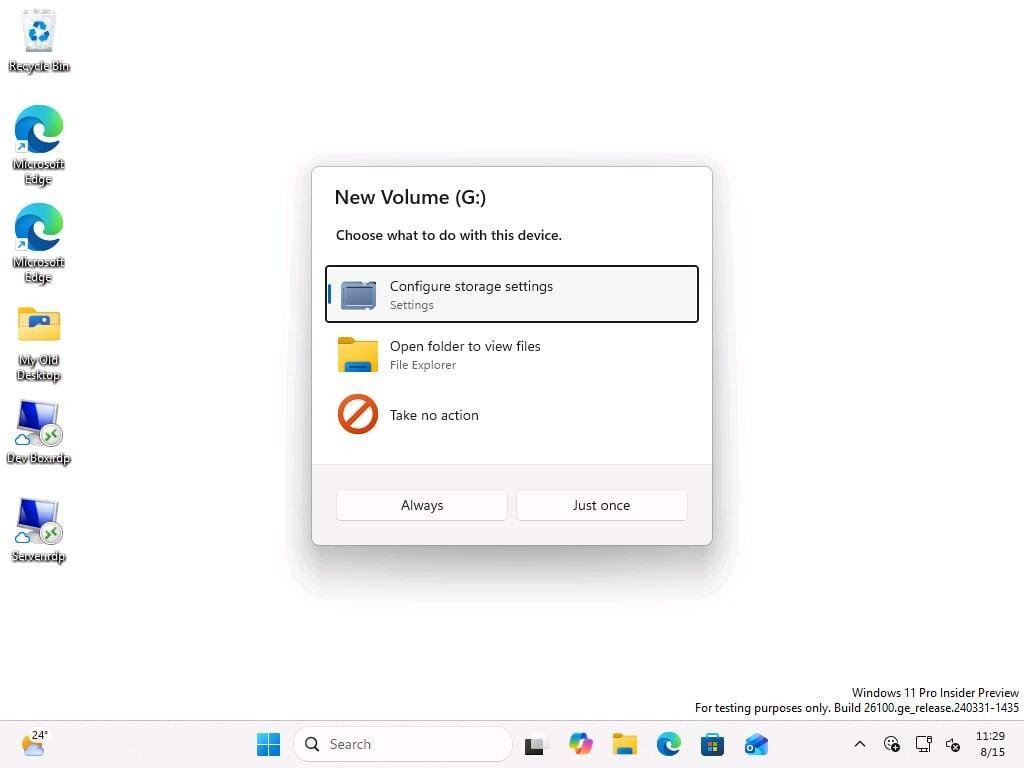
AutoPlay is no stranger to users who often connect mobile phones, USB flash drives, camera memory cards and other devices via USB. When the device is connected to the computer, Windows will pop up a window asking the user what actions they want to perform, such as importing photos and videos, synchronizing media files, viewing the device contents in Explorer, or simply ignoring the device.
This feature can be traced back to the Windows XP era. At that time, it mainly served optical discs and removable storage devices. Later, with the popularity of smartphones, AutoPlay gradually assumed the operation selection function after connecting mobile phones and cameras. While Microsoft tweaked it during the Windows Vista and Windows 8 eras, there have been few noticeable changes in the years since.
The new version of AutoPlay launched by Microsoft this time is rebuilt using the WinUI modern interface framework and is consistent with the overall design language of Windows 11. The new interface no longer appears in the upper right corner of the screen as in the past, but is instead displayed in the center, making it easier for users to notice relevant prompts and making the visual style more unified.
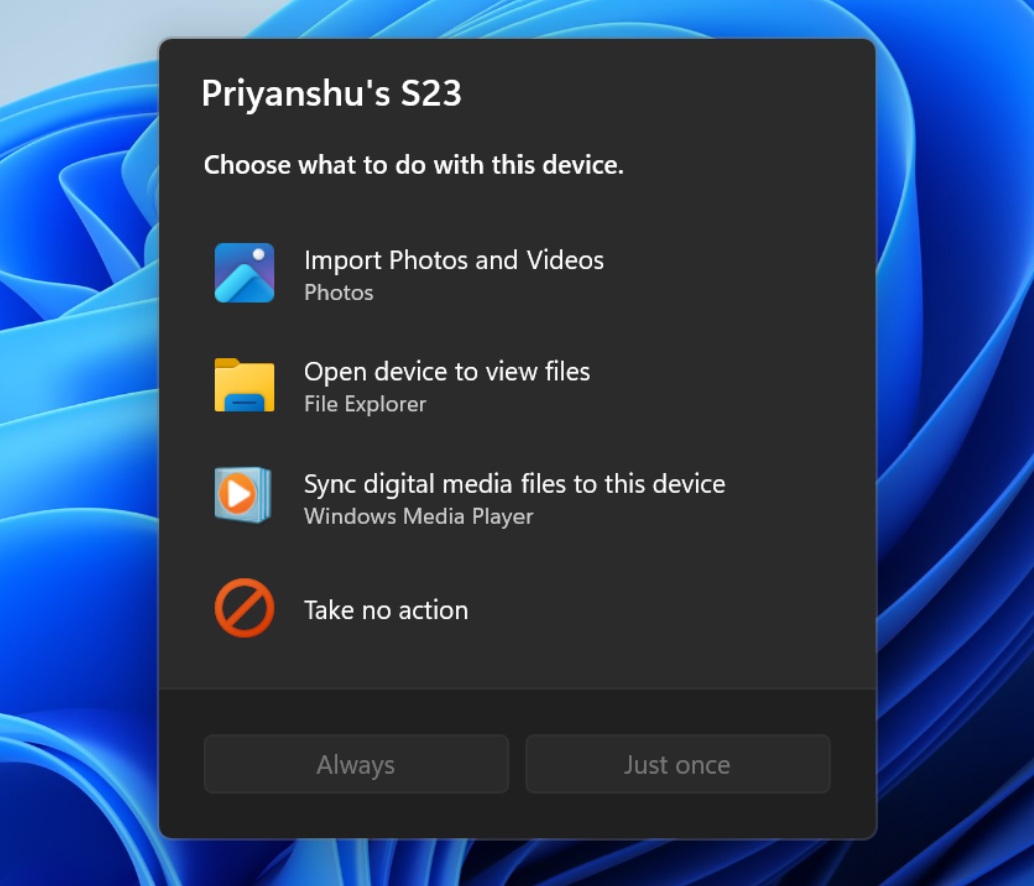
In addition to changes in appearance, the new version of AutoPlay also brings more practical functions. When users select an operation, they can explicitly specify "Always perform" or "Only this time." If you choose to always do it, the system will remember this preference and automatically take the same action when connecting similar devices in the future without repeated confirmation. Past Windows 8-era versions lacked this more intuitive setup method.
The new interface also supports dark mode and can better adapt to different display scaling and text size settings, thereby improving the user experience on high-resolution displays and accessibility scenarios. In addition, AutoPlay-related notification information can now also be retained in the Notification Center, where users can still view and process it later.
This revision is actually the first step in Microsoft's larger Windows 11 modernization project. Microsoft has previously confirmed that it will gradually replace the classic interface components that have been left in Windows systems for many years, and will continue to migrate the old control panel functions to the Settings application to reduce the coexistence of interfaces from different generations.
Microsoft emphasizes that the redesign of AutoPlay is not a simple visual packaging, but a comprehensive upgrade while retaining the original functional logic to avoid the problem of functional shrinkage or experience regression. The new version design not only continues the familiar operation methods, but also provides a more modern and consistent user experience.
However, this feature currently adopts a phased push strategy. Even if the latest November 2026 Windows 11 update is installed, some users may still see the old AutoPlay window in the short term and need to wait for Microsoft to further expand the push scope before they can get a new experience.
With the official start of deployment of the new version of AutoPlay, the Windows 11 interface modernization plan has also entered a new stage. This classic pop-up window, which was born in Windows XP and was finalized in the Windows 8 era, finally completed a belated update and became the first important legacy component to be replaced in Microsoft's process of reshaping the Windows user experience.
Comments