
Abstract:
Microsoft's AI-driven super-resolution technology Auto SR is now officially available on the ROG Xbox Ally handheld device, providing AI super-resolution capabilities for the device. According to an announcement on the Microsoft DirectX Developer Blog, Auto SR has ended the preview phase and officially supports ROG Xbox Ally X and Ally X20 models, and has been extended to some Windows Copilot+ PCs equipped with AMD Ryzen processors.
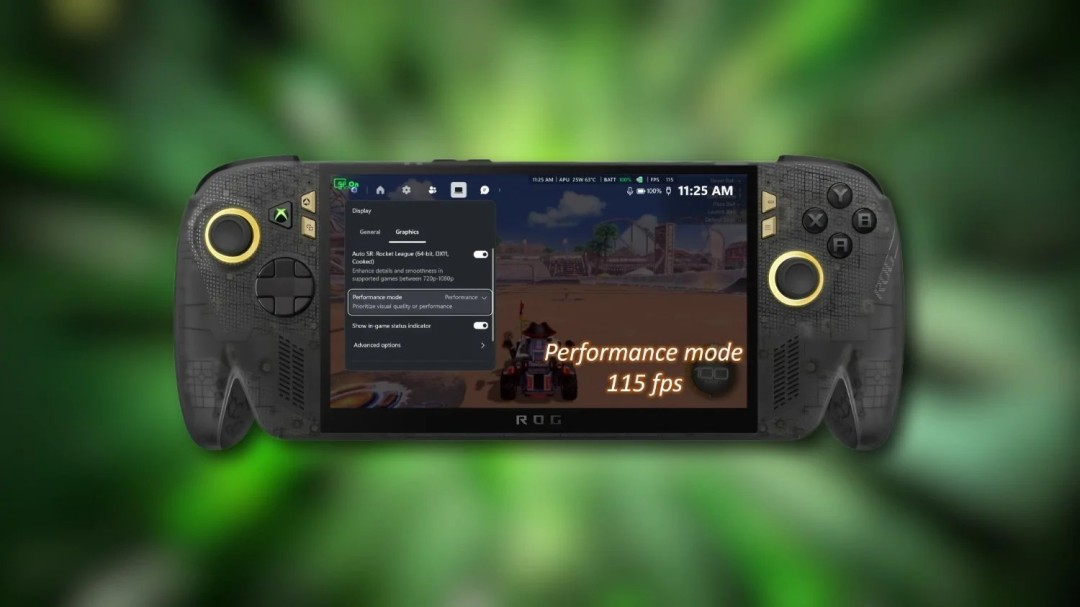
The core change in this official version is the support for handheld mode. Previously, during the Xbox Insider preview phase, Auto SR could only be enabled when the device was connected to the dock and output to an external monitor; after the update, players can activate the feature directly through the built-in screen of the handheld device, even if it is powered by battery, without the need for an external device. At the same time, it also adds support for 1080p native rendering games. When connected to a high-resolution monitor, the 1080p screen can be upgraded to 1440p output. Microsoft also reminds that the performance when running at 1080p in handheld mode may not be as ideal as other configurations, but the image quality improvement can still be felt in some older games.
At the functional level, a new Performance Mode is also introduced, which increases the frame rate limit of Auto SR from about 60 to 75fps to a maximum of 120fps. Players can switch between image quality mode and performance mode in real time through the Xbox Game Bar. Demonstration data released by Microsoft shows that when "Rocket League" is running at 720p high image quality, the image quality mode averages about 70fps, and the performance mode can reach about 115fps. Additionally, Auto SR can now run simultaneously with Windows Auto HDR, eliminating the need to choose one or the other.
It should be noted that Microsoft adopts a phased push method. Handheld mode, 1080p support and AMD Ryzen Copilot+ PC extensions are already available, while Performance Mode and Auto HDR compatibility will be gradually put in place through subsequent Windows updates, and not all devices will be available immediately. Users need to update the Xbox Game Bar, install the latest Windows 11 update, obtain the Auto Super Resolution Package from the Microsoft Store, and then select the corresponding mode under the Widgets→Display→Graphics path of the Game Bar.
Comments