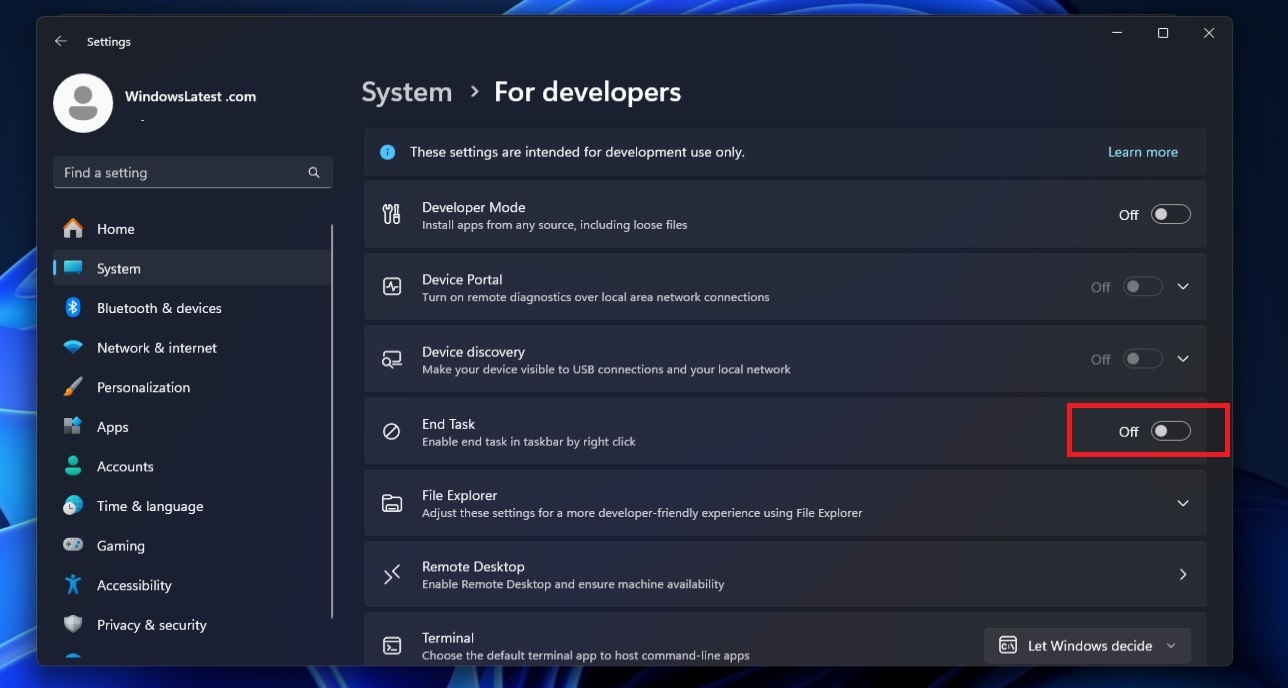
Windows 11 allows you to add"End task" option. If you need to try, please open"set up">"system">"Developer", then switch to "end task”. But how does it work? And why do we need it?
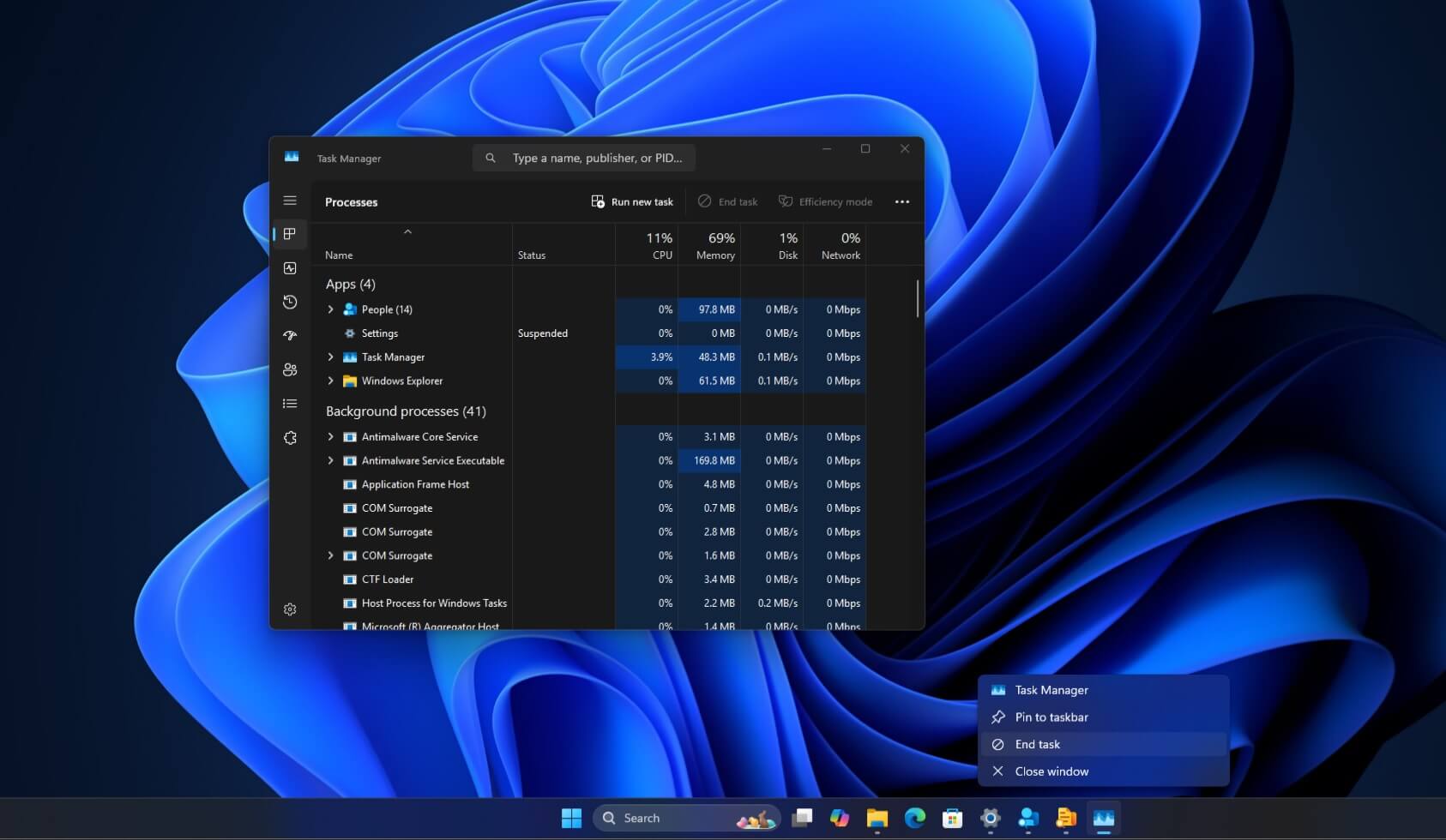
Windows 11 is a great operating system for most of us, but sometimes an app or game stops responding and the title bar Close button doesn't work.
You can always force close the app by shutting down/restarting the system, but most people open Task Manager and find the process associated with the program. Then we kill the process. This will force close the application and you can use Windows again.
Thankfully, you don't need to open Task Manager, manually track down each process, and kill them one by one to close that annoying app. All you have to do is use the End Task button and follow these steps to turn it on: Open Settings > System > Developers and enable End Task.
Once done, simply right-click on the application taskbar (an open or running application) and select the End Task button to close the application.
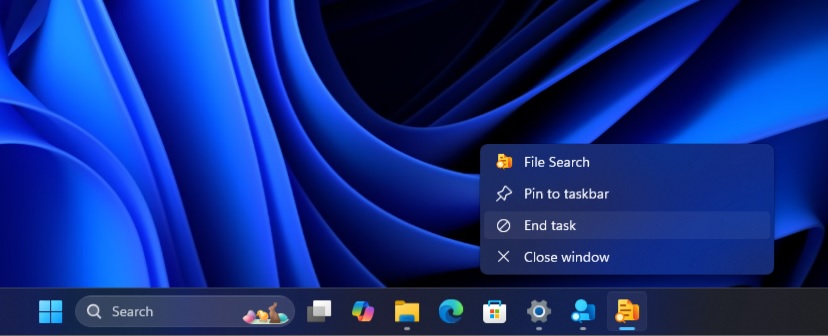
It works like Task Manager, but what happens in the background? First, when clicked, it tells Windows to try to close the application using the WM_CLOSE attribute, as if you had selected the "X" from the title bar menu.
However, if the application is unresponsive, it will not be able to handle the WM_Close "X" directive. In this case, the taskbar's "End Task" button will try to find the process ID behind the "unresponsive application" and end all related processes (also known as child processes).
The taskbar's end task follows Windows 11's Task Manager approach, which ultimately calls TerminateProcess to force quit everything. However, it does not allow you to end system processes such as File Explorer.