
Abstract:
Currently, Windows 11 has re-supported adjusting the taskbar to the top, left or right side of the screen. However, if the user wants to adjust the position of the taskbar, they must enter the settings. They cannot directly drag the taskbar to the position they want like Windows 10.
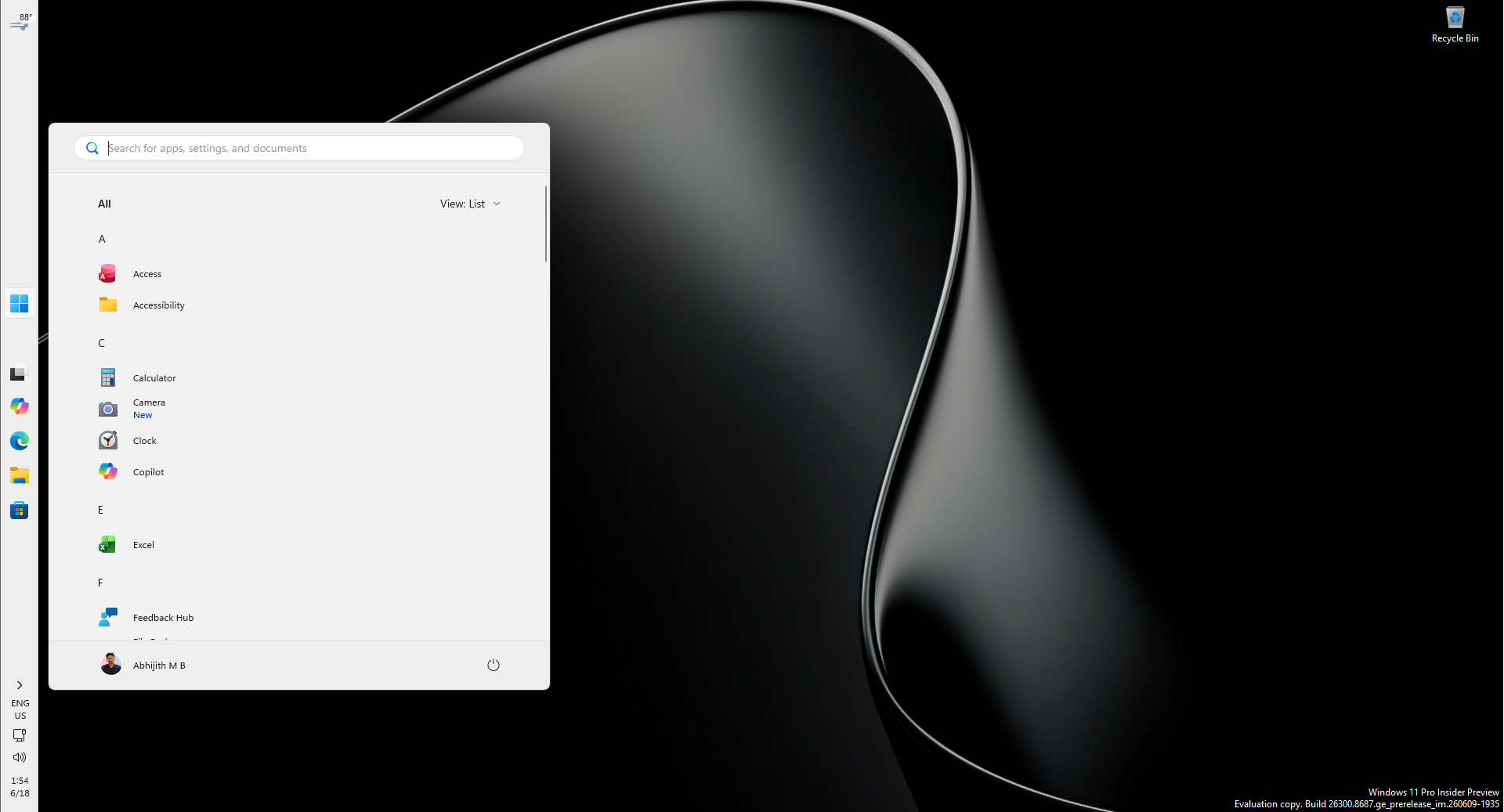
Microsoft's vice president of design recently explained the user experience here. The vice president said that prohibiting direct dragging of the taskbar was a design decision made after research. Microsoft believes that supporting direct dragging may cause the taskbar to be moved unexpectedly, and the frequency with which users adjust the position of the taskbar is not high.
In Windows 10, the taskbar can be set to a locked state to prohibit dragging. When the user needs to move, the taskbar must be unlocked first, and then the mouse can be dragged to other edges of the screen by pressing and holding the blank area of the taskbar. The relevant UI will also automatically adapt according to the position.
When Windows 11 was initially released, the redesigned taskbar was pinned to the bottom of the screen. After years of user feedback, Microsoft finally returned to supporting the selection of taskbar positions this year, allowing users to place the taskbar on the four edges of the screen.
However, Microsoft chose a different method of operation: Diego Baca, Microsoft's vice president of design, said that after research, the company found that dragging the taskbar may cause users to accidentally change the position of the taskbar, which is why Windows 10 provides a taskbar lock option.
Diego Baca said that most users will not adjust it frequently after choosing their favorite taskbar position. Therefore, Microsoft decided to enter settings through the right-click menu before users can choose the position of the taskbar display. This can also make the operation clearer and easier to predict.
After updating to a supported version of Windows 11, you can move the taskbar location by following these steps:
1. Right-click on a blank area of the taskbar and select Taskbar Settings. Personalized settings will open
2. Find the taskbar behavior and taskbar position. Here you can choose bottom, top, left and right
3. Users can also set whether they want a small taskbar according to their preferences. A small taskbar is more practical on devices with smaller screens
Related articles:
Windows 11 taskbar can already be placed on the top/left/right side and windows can be set not to be merged by default
Former Windows chief criticizes Windows 11 taskbar as "still difficult to use"
Comments