
Abstract:
Microsoft is testing a new feature that could change the way Excel handles data: cells can hold multiple structured values at the same time. This update includes lists, cell arrays, and nested arrays. A new beta version that supports this feature is being pushed to Microsoft 365 Beta users. After the test is completed, this feature will gradually support official version users.
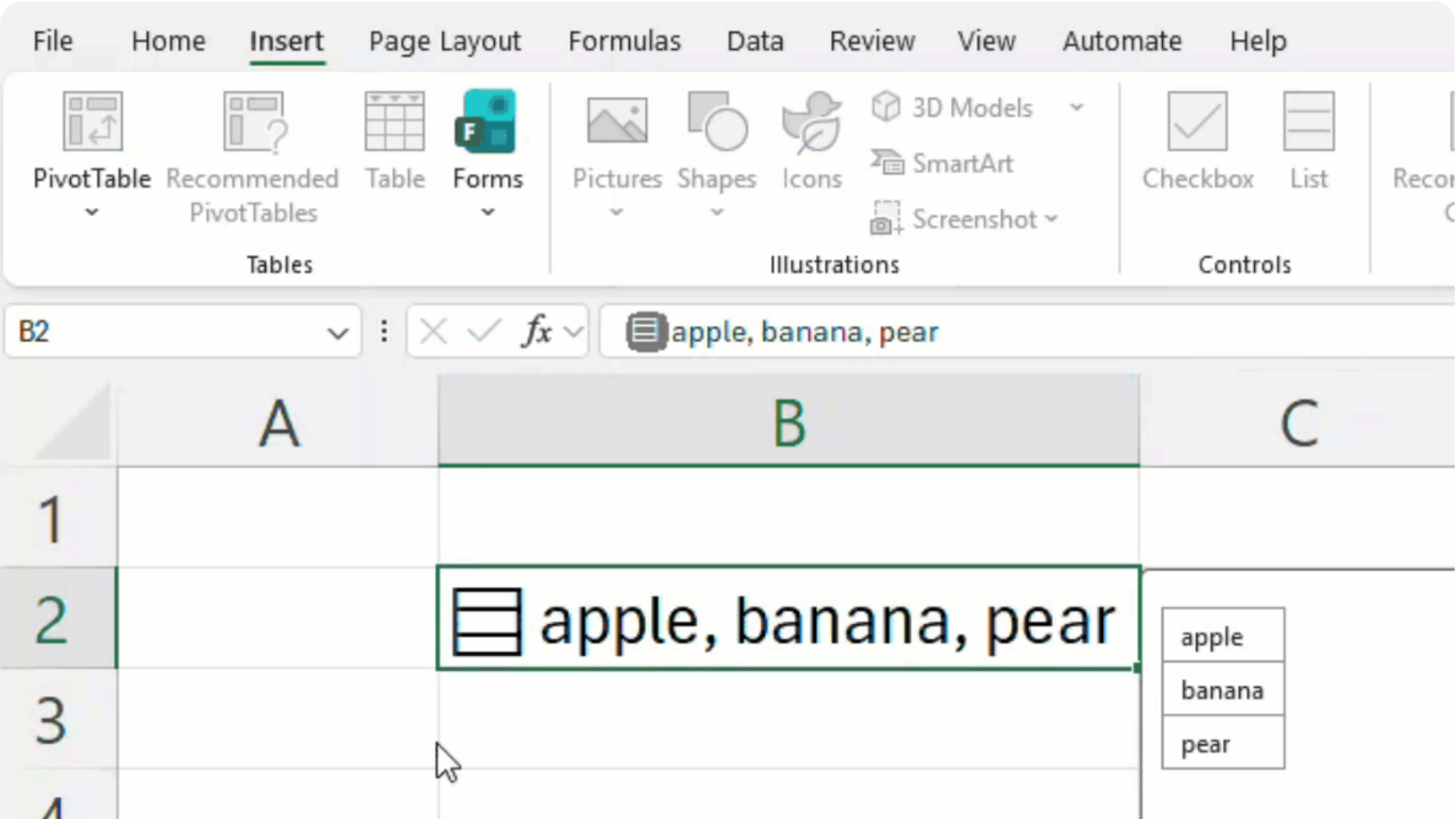
From delimited text to a real list:
In the past, users might write multiple data into cell text, for example, if they wrote "Zhang San, Workshop Director, 028" in a certain cell, Excel would regard the content of this cell as a separate string, making it impossible to directly filter by a member, position or job number, and difficult to apply separately in calculations.
The new list function treats these saved contents as independent items in the same cell. Users can create a list through insert, list, or the shortcut key Ctrl+J, and then enter and paste multiple values separated by English half-width commas or semicolons. The cell will display a list icon, which can be clicked to view each item. You can also add, delete, and modify items by double-clicking the cell or F2.
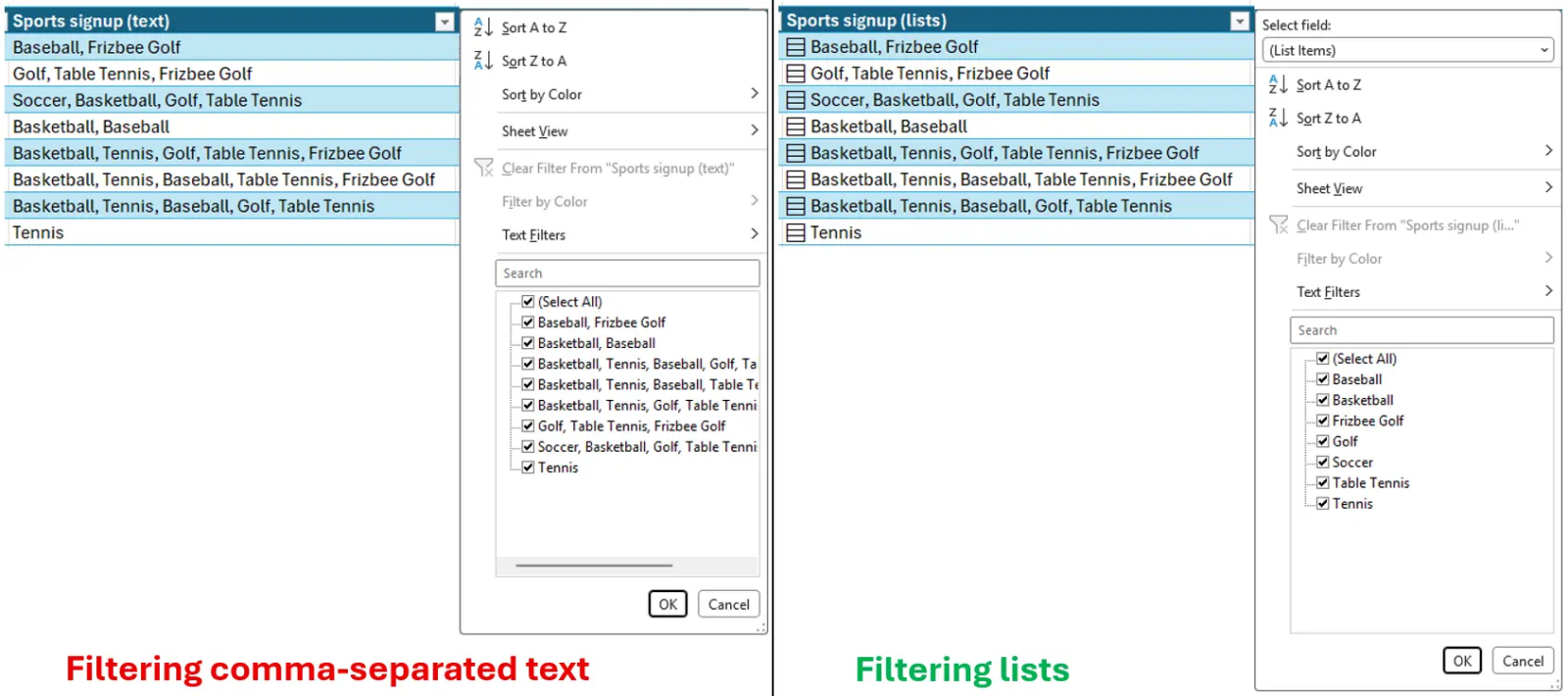
The biggest change with lists is that Excel is able to recognize individual values within them, and when filtering data, you can select one or more items in the list, instead of being able to match the entire text exactly. When referencing a list, Excel can also return all values within it, spilling the results into adjacent cells.
Arrays can be kept in one cell:
The list function is mainly for manually entered data, while the Arrays in Cells array function changes the storage method of formula results. Traditional dynamic array formulas will automatically overflow multiple results into adjacent cells and save them. The new function allows users to save the array as a whole in the cell.
These arrays can be of any size or shape, and can also be generated by formulas. For scenarios where you need to keep the table compact but want to retain multiple calculation results, this approach can reduce auxiliary columns and temporary areas. For example, a running record table can have each row corresponding to a run, save a different number of segment results in the same cell, and then calculate the total time, average pace, fastest segment, etc. next to it.
Nested arrays allow an array to contain other arrays, for example, different projects can have different numbers of task lists. In the past, related formulas may only return partial results or generate calculation error prompts. After adding nested arrays, supported formulas can retain the complete hierarchical structure and continue to participate in subsequent calculations.
New nested number companion function:
FLATTEN: used to expand nested structures
HAS: Check whether the array contains the specified value
HASANY: Determine whether it contains any target value
HASALL: Determine whether all target values are included
Comments