
Abstract:
Windows 11 26H2 has entered the release preview channel, which is the last stage before official release. However, it won't appear on most users' computers anytime soon. According to Microsoft's consistent release schedule, Windows 11 26H2 is likely to be officially launched in the last week of September or early October, but a larger push may have to wait until the end of this year, or even early 2027.
Test results show that Windows 11 26H2 has basically no real new features, and there is no need for users to get excited about its release.
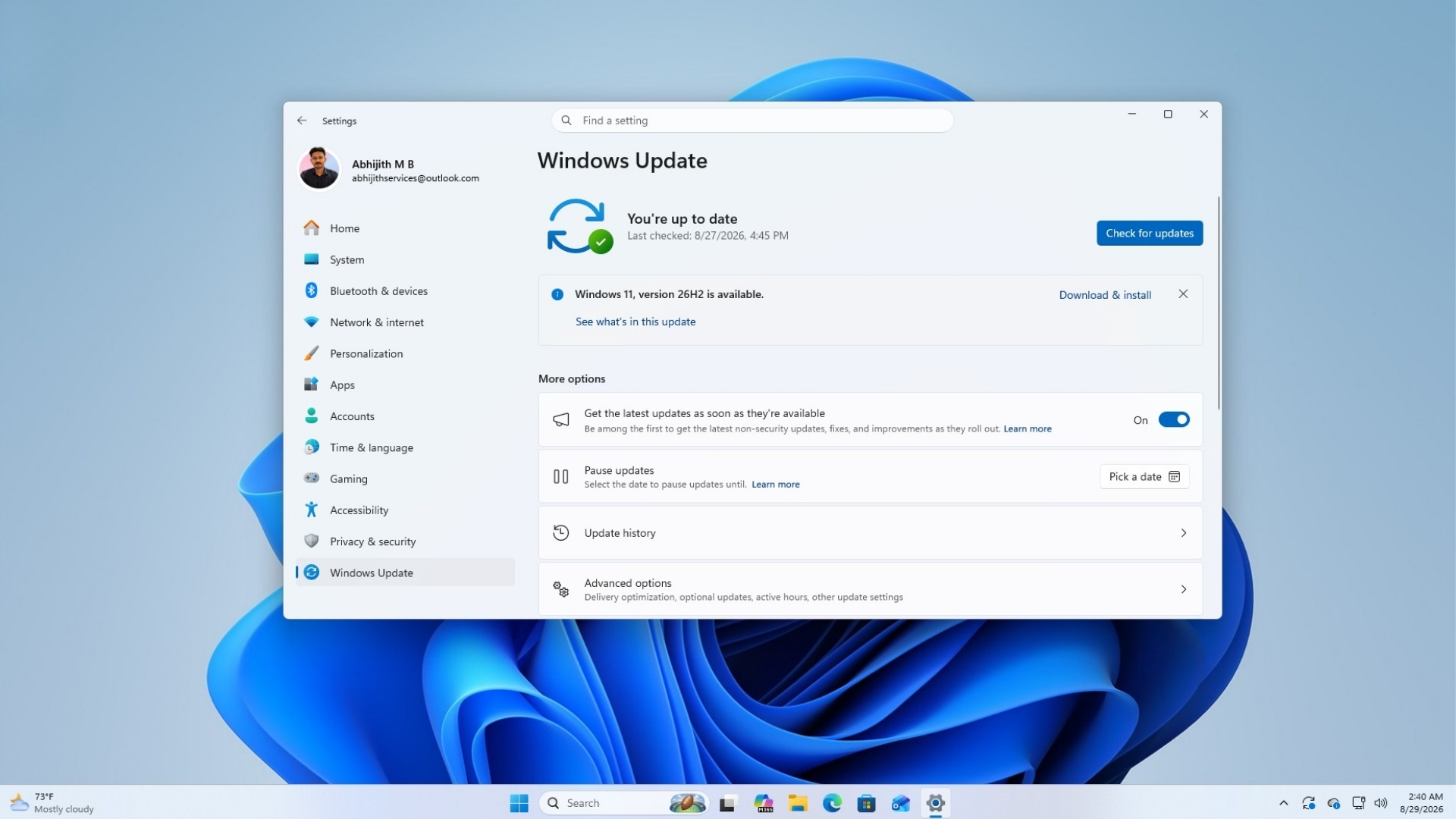
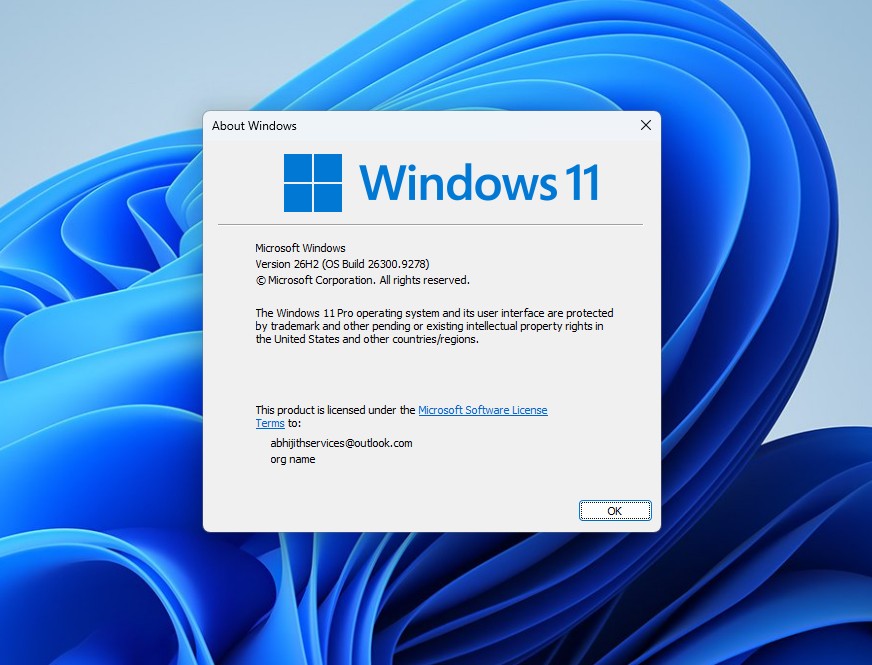
Windows 11 26H2 is essentially an enablement package. It was released on August 27, 2026 with version number 26300.9278. Microsoft calls it "this year's annual feature update," but that's obviously a bit of an exaggeration, because 26H2 uses a very lightweight enablement package mechanism, the same way it converted Windows 11 24H2 to 25H2 last year.
Enabling packages means Windows 11 24H2, 25H2, and 26H2 are all running on the same service branch. Microsoft stated in the announcement that these three versions use shared service branches and will also share new features and improvements pushed through the continuous innovation mechanism.
In other words, 26H2 will not add any content that has not previously appeared in the 24H2 or 25H2 monthly updates. It just opens up some hidden features that are already present in the system, just like 25H2 before it.
The reason why we are still testing 26H2 is that this version is actually just a "master switch" with a volume of about 174KB, which is used to activate the code that users have received through previous monthly patches. It doesn't have any exclusive standalone features, and testing this enablement package just goes to show how limited the content of this update is.
After installing 26H2, there are three main things that have changed, and none of them can be considered new features.
First, the system version number will become 26300. After installing 26H2, the Windows 11 build number will change from 26200 in 25H2 or 26100 in 24H2 to 26300. This is just a version label and doesn't change how Windows actually runs.
Secondly, the Windows support cycle will be recalculated. Windows 11 24H2 Home and Professional editions will end update support on October 13, 2026, while Enterprise and Education editions will be supported until October 12, 2027. After upgrading to 26H2, users get another full support cycle because Microsoft resets the life cycle with every annual version upgrade, even if the new version has almost no code changes.
However, not upgrading to 26H2 will not cause obvious problems. Just continue to use 25H2, because the support time of 25H2 Home Edition and Professional Edition also extends to October 2027.
Third, for business users and managed devices, 26H2 will enable by default some features that already existed but were turned off in the enterprise environment. Microsoft lists three items: Windows settings backup, app-specific actions in the taskbar, and File Explorer improvements.
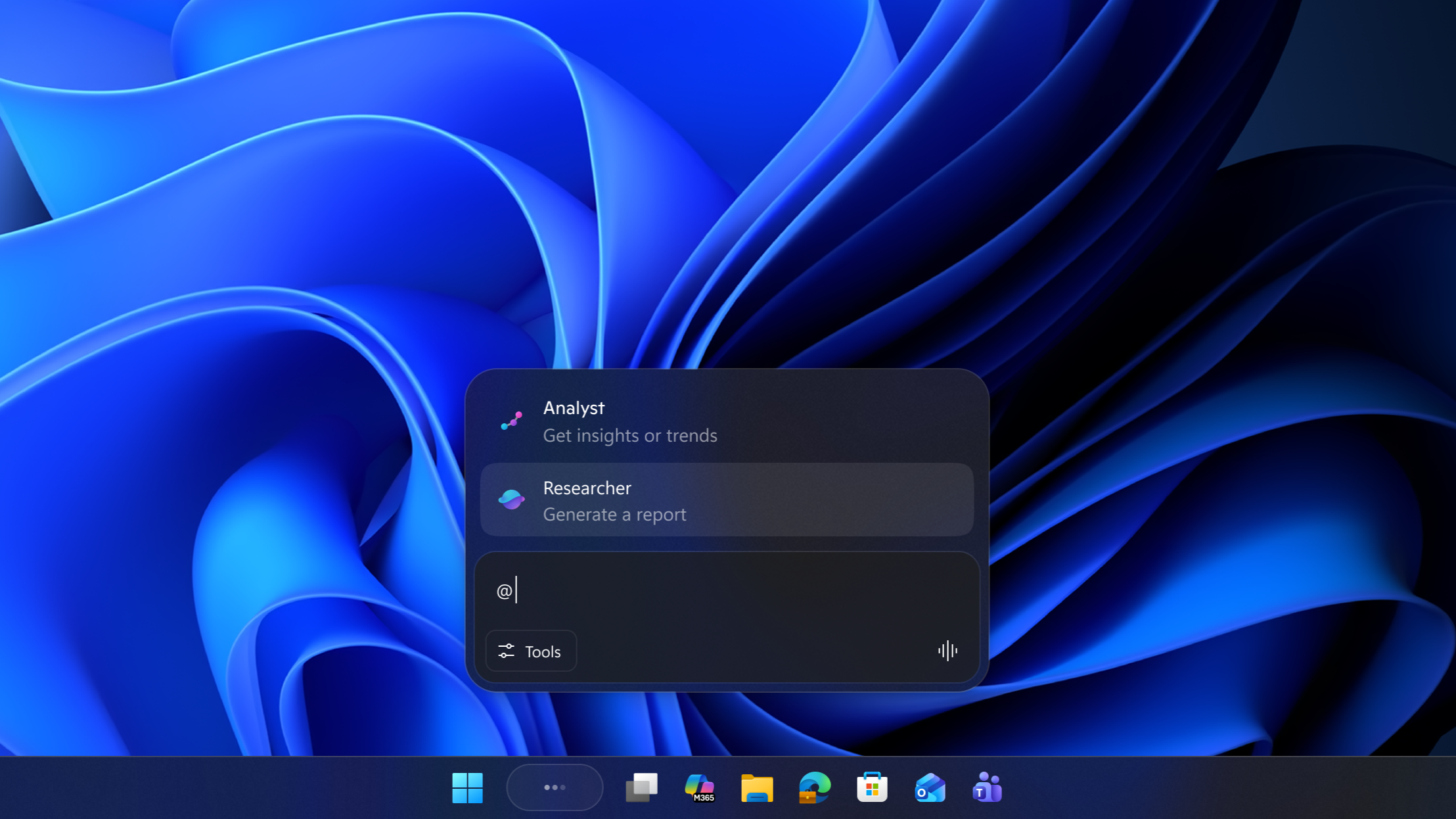
Among them, "application-specific operations in the taskbar" refers to the taskbar proxy function, but it was not found on the test computer.
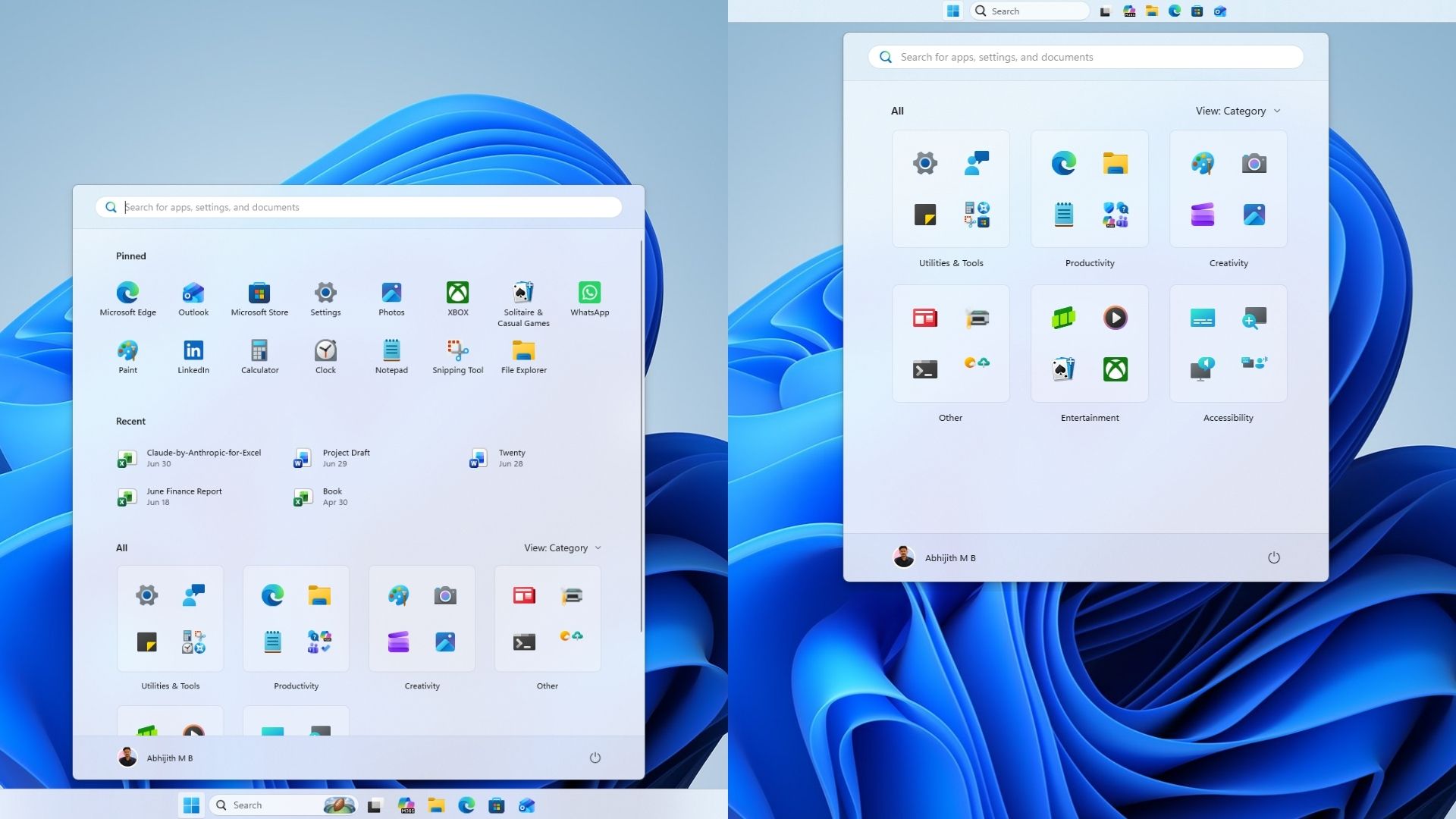
Ordinary consumers will not get new content as a result, because these features have already been pushed to Windows 11 Home and Pro users through regular monthly updates. File Explorer improvements and the new Start menu, introduced earlier this year, follow the same mechanism.
Currently, users who have joined the release preview channel and whose computers meet the hardware requirements of Windows 11 can experience installing 26H2 through "Actively Check for Updates" in Windows Update. After the installation is complete, the computer will continue to receive monthly service updates normally like other Windows 11 versions.
Enterprise customers who have joined the Windows Insider Business program can now deploy 26H2 through Windows Update client policies and WSUS, and the Azure Marketplace version will be available soon.
IT administrators who encounter problems during the verification phase can contact Microsoft Support according to the Microsoft announcement. Microsoft is also preparing new installation ISO files for 26H2. These files will appear on the Windows Insider ISO download page in the future, but they have not been released yet.
Microsoft is also testing media creation tools and ISO support for the public launch of 26H2. Although 26H2 is only a small enablement package for computers already running Windows 11, a new installation will still proceed as before.
The service branches and support times of the three supported versions are as follows: 24H2 uses the "24H2/Germanium" service branch, the home and professional versions are supported until October 13, 2026, and the enterprise and education versions are supported until October 12, 2027; 25H2 also uses the "24H2/Germanium" service For branches, the Home Edition and Professional Edition will be supported until October 12, 2027, and the Enterprise Edition and Education Edition will be supported until October 10, 2028; 26H2 also uses the "24H2/Germanium" service branch. The Home Edition and Professional Edition are expected to be supported until around October 2028, and the Enterprise Edition and Education Edition are expected to be supported until around October 2029.
Since the three versions share the same service branch, it is not worth joining the Windows Insider program just to get early access to 26H2. It's more appropriate to stick with the 25H2, as the two are basically functionally identical.
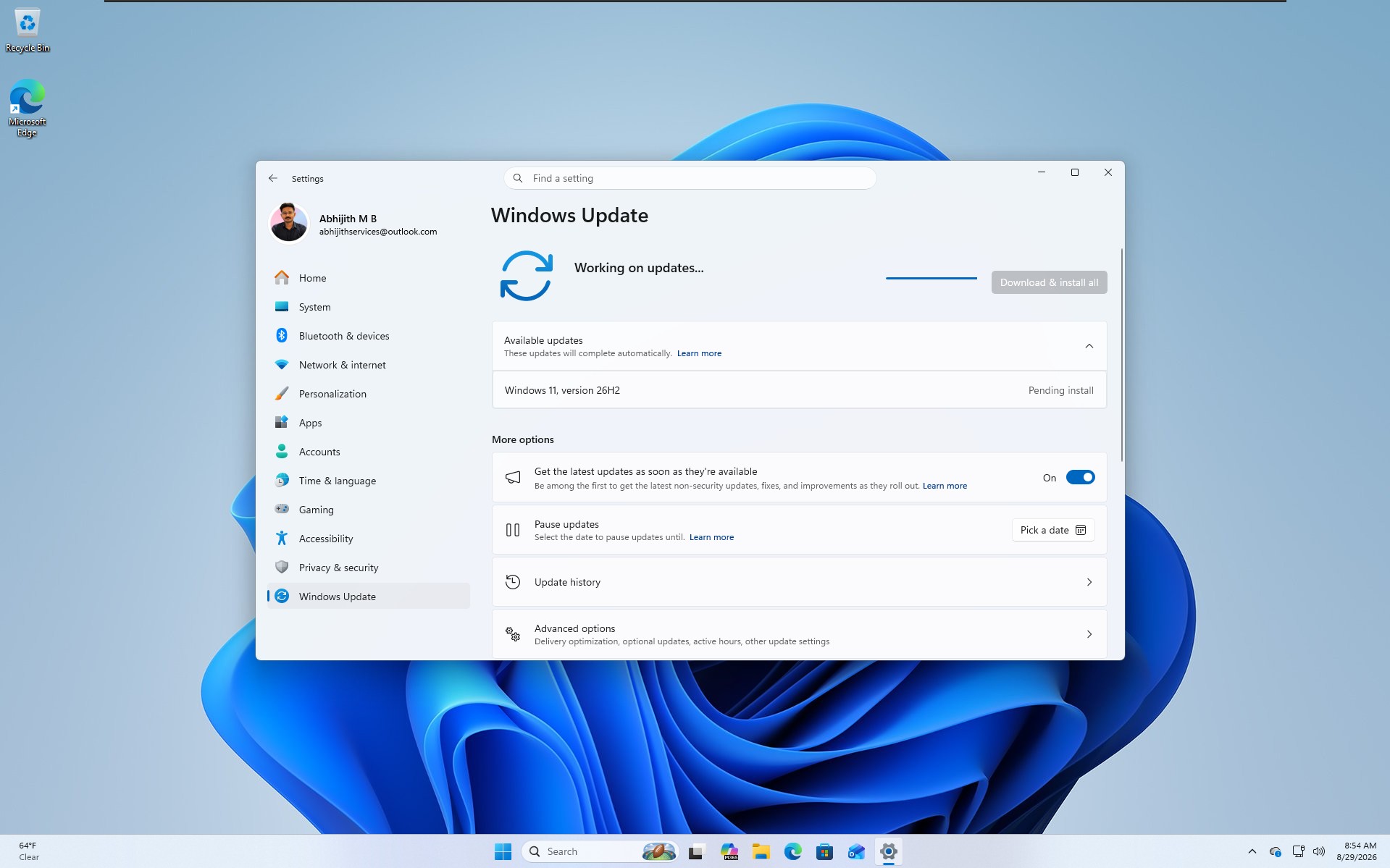
The process of testing 26H2 was somewhat frustrating because we already knew it was an enablement package. But the core logic of enabling packages is that the system already contains the relevant code, and you just need to turn on the switch. Therefore, before installing 26H2, I originally thought that the taskbar position adjustment, the start menu size adjustment and the search interface redesign would be enabled immediately and there would be no need to use ViVeTool.
But this is not the case. After successfully installing 26H2 on the test computer, none of the three most talked about functions appeared automatically. Even after version upgrades are completed, Microsoft still determines which users can see these features and when they see them through a "controlled feature rollout" mechanism.
This means that even if the code already exists and can theoretically be used, users still have to wait for Microsoft to gradually release the functionality. Ultimately, I was forced to use ViVeTool to force-enable all features as previously reported by Windows Latest for the August optional update, rather than wait for Microsoft to schedule it on my device.
When 26H2 is finally pushed to users’ computers, users will receive the following features one after another.
The Windows 11 taskbar can finally be moved to either side of the screen. Since the release of Windows 11 in 2021, the taskbar has been locked to the bottom of the screen. Now, users can go to "Settings > Personalization > Taskbar > Taskbar Behavior > Taskbar Position" and choose from four positions: left, top, right, and bottom.
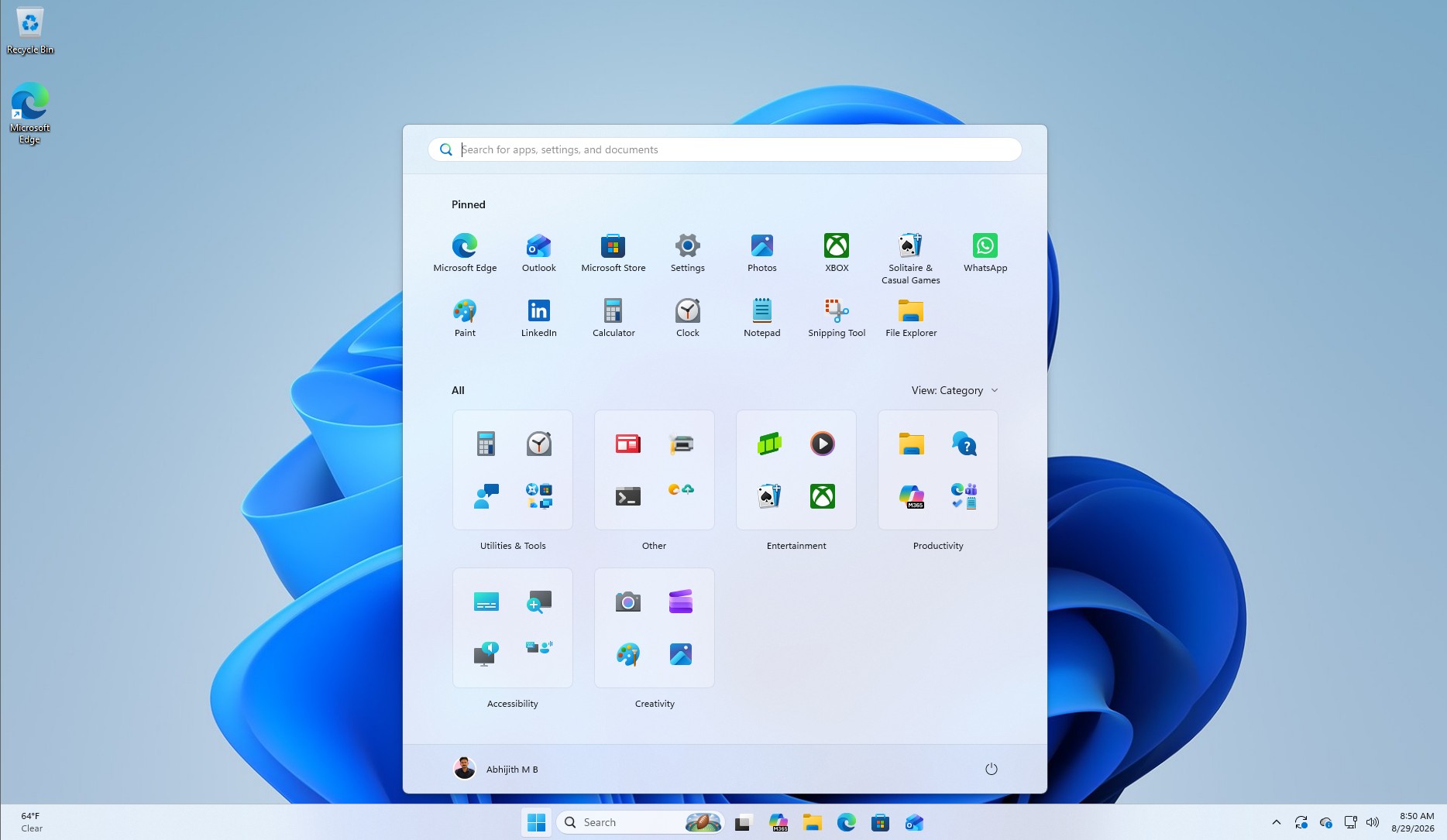
Tooltips, pop-up menus, and animations will move with the taskbar no matter where it is placed. Users can also keep taskbar icons unmerged regardless of the taskbar's position.
There are limitations to this feature, however: the search box and smaller taskbar mode only work when the taskbar is at the top or bottom.
The taskbar also has a new smaller size option. In "Settings > Personalization > Taskbar > Taskbar Behavior > Taskbar Size", users can select "Small" in addition to "Default". When enabled, the icons and taskbar height will be reduced, but the start menu, search function and system tray can still be used normally. This option is quite useful for laptops with smaller screens. Additionally, the "Taskbar Behavior" area in the Settings page is now expanded by default.
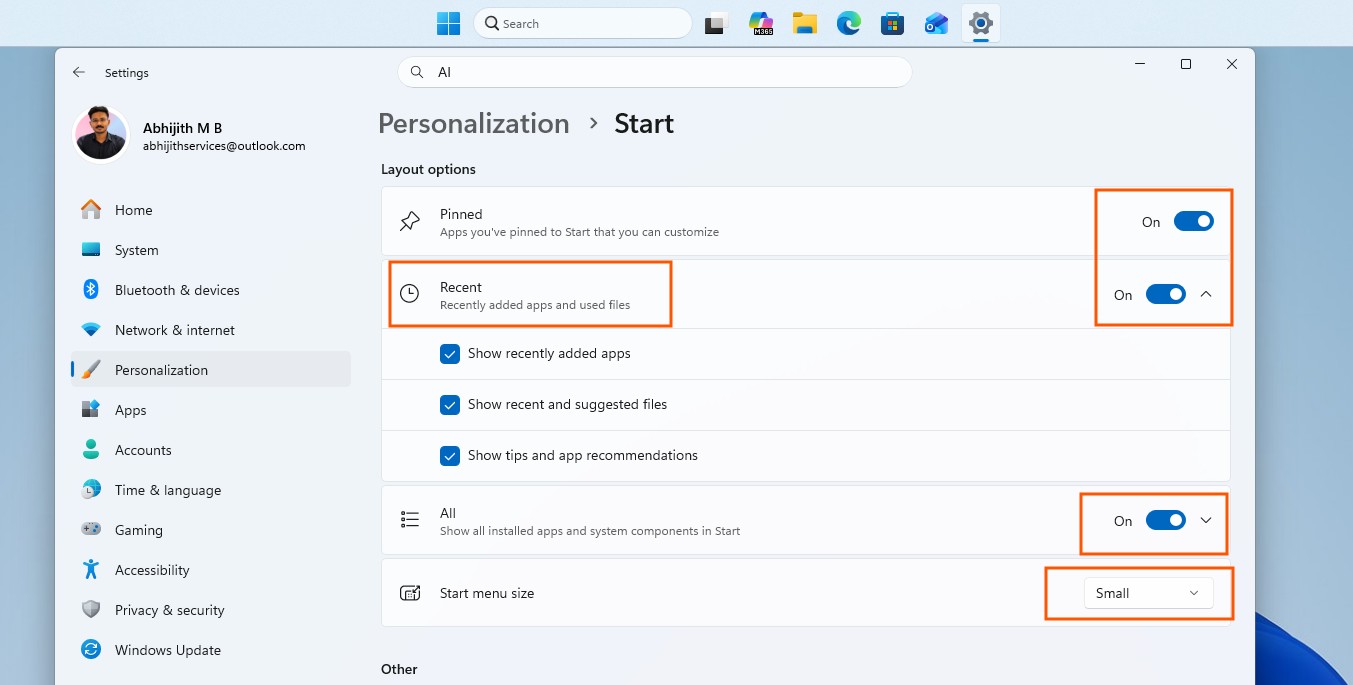
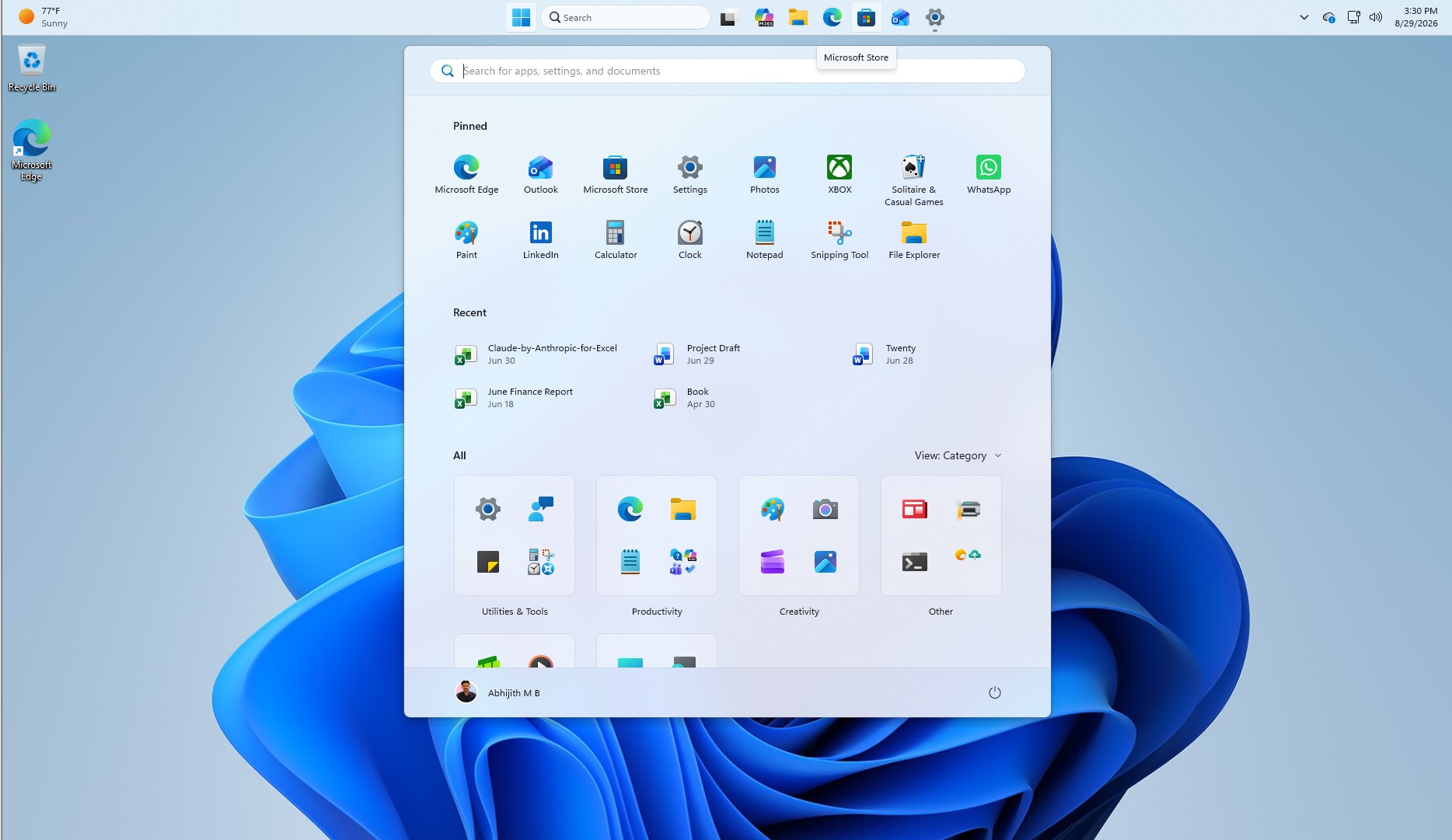
The Start menu finally no longer takes up too much screen space. Users have complained about the redesigned Start menu, which takes up up to about 70% of the screen on some smaller laptops. Now, users can go to "Settings > Personalization > Start" and select "Auto", "Small" or "Large" in the Start menu size drop-down menu, and no longer have to be limited by Microsoft's preset size.
The "Recommended" area in the Start menu and related settings pages has been renamed "Recent". Users can show or hide the "Pinned", "Recently Used" and "All Apps" content through separate switches.
Microsoft is also decoupling Recents in the Start menu from File Explorer's jump list. Previously, closing Recents in the Start menu might clear the recent files list in File Explorer. Now, the two have no influence on each other.
In addition, the Start menu now has the option to hide your name and profile picture. This setting is more convenient for users who frequently live broadcast, share screens, or record desktop operations.
Windows Search also allows users to turn off Bing and Microsoft App Store results. In "Settings > Privacy and Security > Search", a new "Show suggested search results" area has been added, and users can turn off web search and Microsoft Store suggestions respectively.
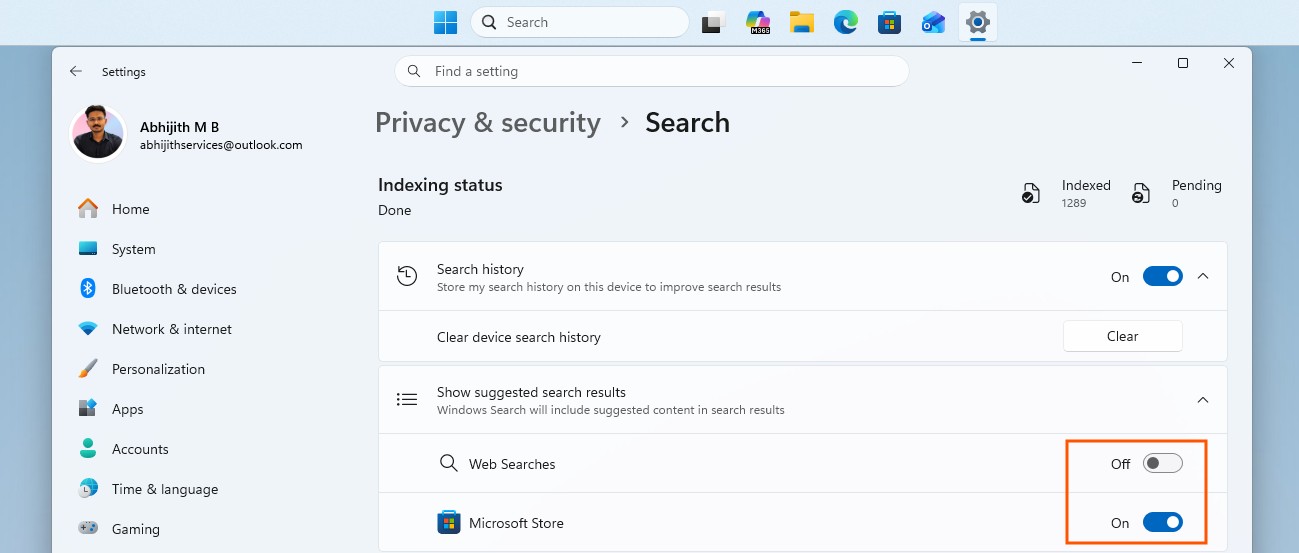
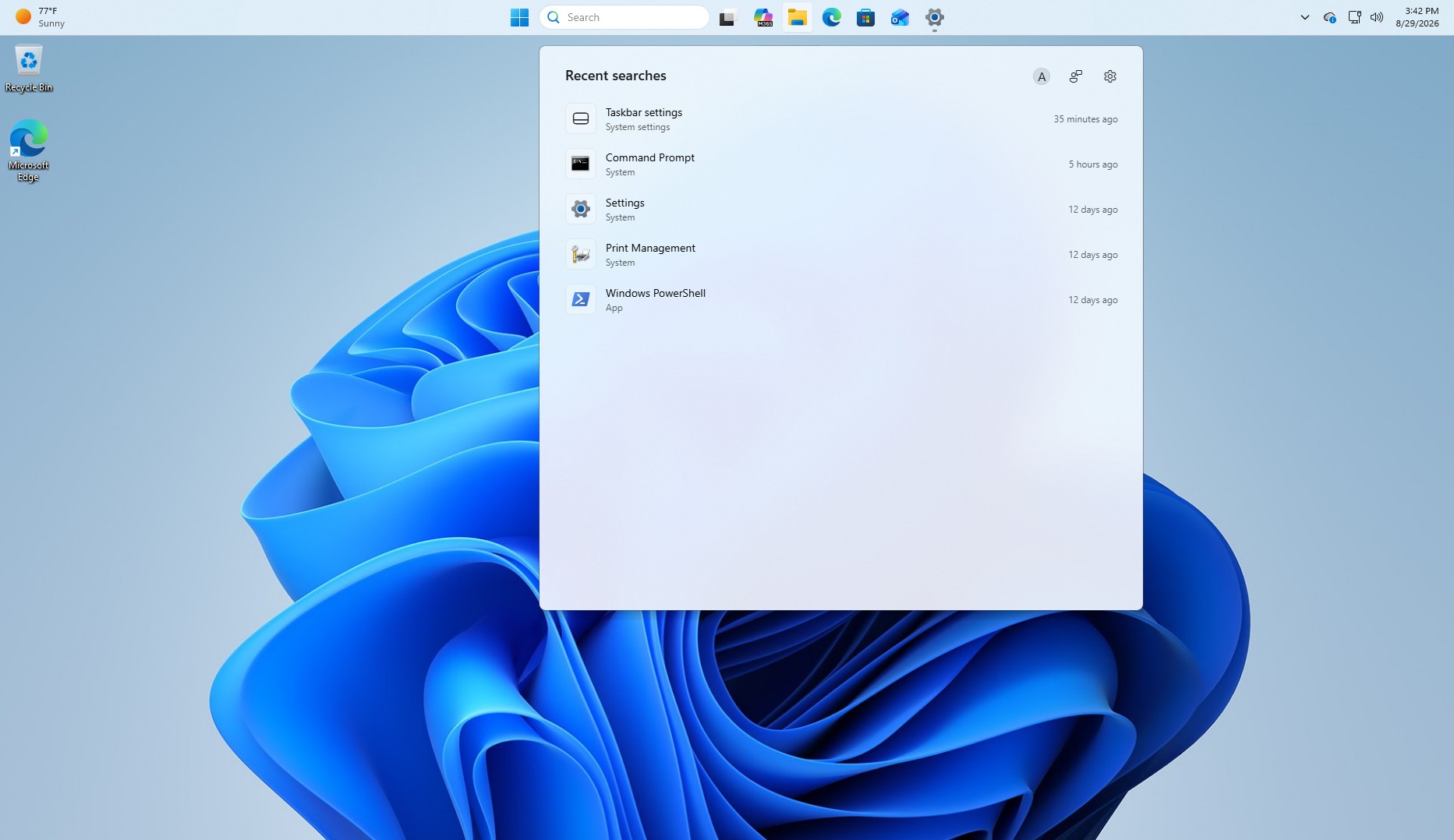
If you turn off both features at the same time, Windows Search will only show apps, settings, and files that exist locally on your computer. If the search content cannot be found locally, the system will no longer display web results.
The search homepage has become simpler by default. When opened, recent search records will be displayed first instead of promotional content. This change does not require additional switches. Search results now also indicate the content type, such as apps, files, settings, web results, or app store suggestions.
Administrator protection features have also been re-enabled after being suspended. Microsoft first introduced administrator protection through KB5067036 in October 2025, with the goal of gradually moving away from long-standing administrator rights and moving to an instant privilege escalation mechanism.
In legacy mode, once a program obtains administrator privileges, it may retain those privileges for an extended period of time. Administrator protection creates temporary, isolated administrator tokens for specific tasks and destroys them immediately after the task is completed.
This feature was suspended in December 2025 due to app compatibility issues. A preview build released on August 14th marked its return, but administrator protection is still turned off by default. Enterprises need to enable it via an OMA-URI or Group Policy setting in Microsoft Intune, so this is primarily a feature for IT admins.
Microsoft also made it clear that administrator protection is not a formal security perimeter. It strengthens the system's protection against privilege escalation attacks through configuration file separation, but does not guarantee complete protection.
Strictly speaking, administrator protection is not a unique feature of 26H2. As a new Windows version arrives on your computer, you'll get it, just like other features.
26H2 also includes a series of low-level improvements. The File Explorer homepage launches faster and is more responsive; the Recommended carousel area in the homepage now supports touch scrolling. The progress indicators when starting up, logging in, restarting, shutting down, and installing updates also adopt a more modern visual style and are no longer as inconsistent as in the past.
Windows sharing now allows work or school account users to discover and install related applications directly in the sharing window, which administrators can control through "Settings > System > Sharing".
Switching between virtual desktops is also smoother. For users who often open multiple virtual desktops at the same time, this change will be easy to detect in actual use.
In terms of input, Windows has fixed some reliability issues with the Japanese input method that could previously cause the input process to get stuck. Voice input now remembers auto-punctuation and launcher settings so you don't have to reconfigure them every time.
The navigation of the display settings page is more reliable, and the system can correctly retain the brightness previously set by the user after the energy-saving mode is automatically turned off. Task Manager can display application history information more stably.
If the user manually puts the computer to sleep, the computer now correctly re-enters sleep after completing the update, even if the system has auto-sleep turned off. This has been a vexing issue before.
On the network side, Windows has enhanced the stability of VPN-related background processes and reduced the number of processes that stop responding. At the same time, the output of "netsh wlan show wlanreport" for Japanese users has also been corrected.
In cryptography, the post-quantum algorithm ML-KEM can now be used for TLS key exchange as an independent algorithm, not just as part of the hybrid group that Microsoft previously joined. This change is primarily relevant to organizations that have already begun transforming their infrastructure for post-quantum standards.
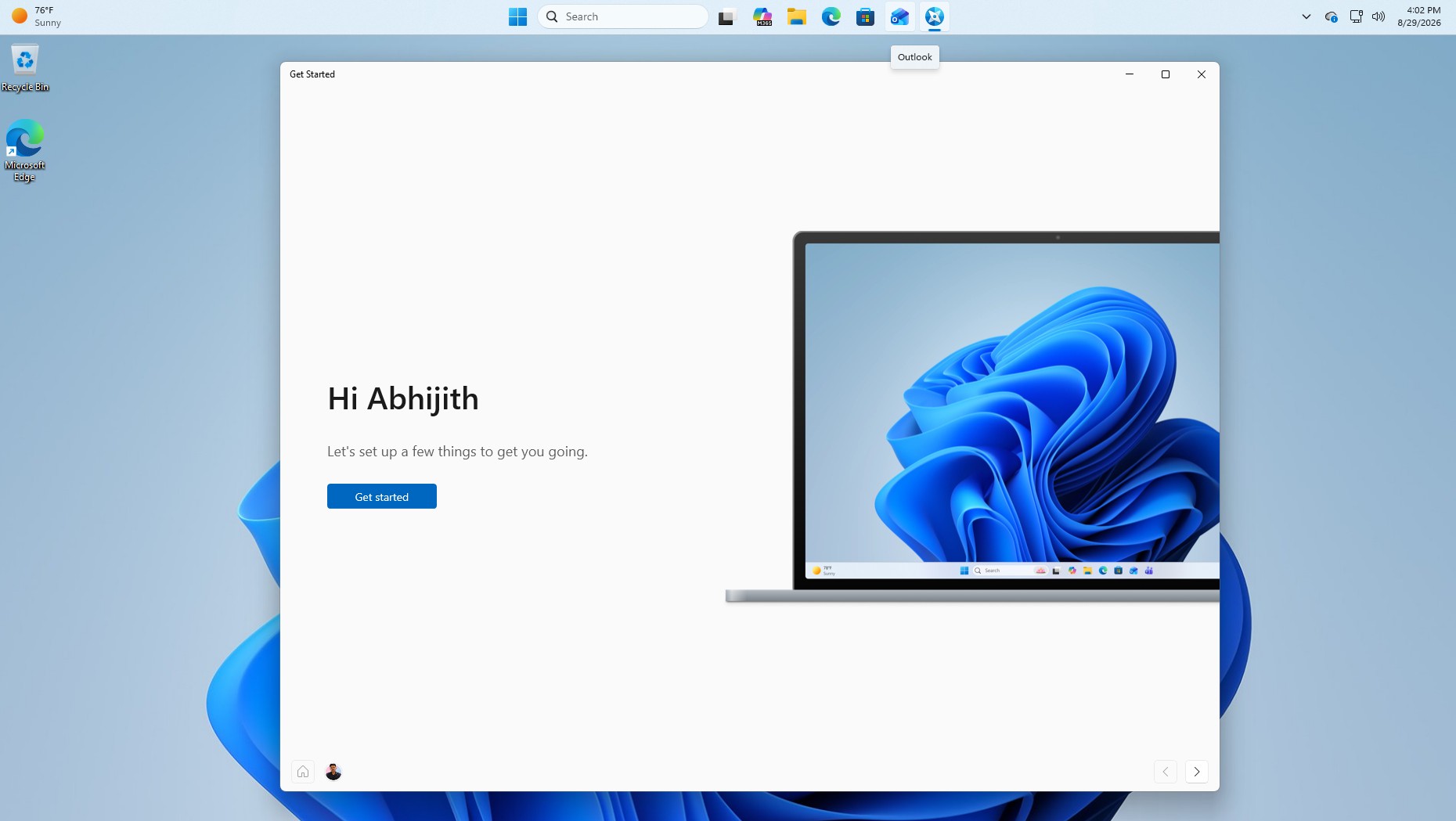
The Windows installer has also received two adjustments. The secondary keyboard selection interface has been simplified and is easier to skip when not needed; the new version of the "Get Started" app has added new pages for app installation, website pinning, and themes.
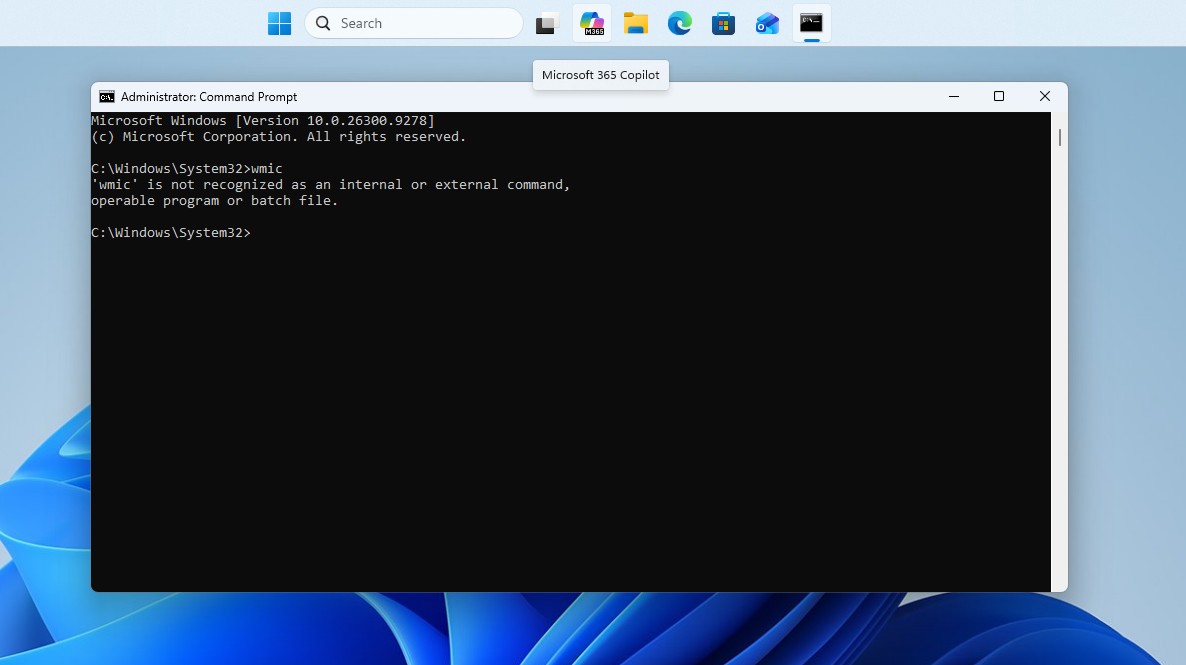
Starting from this version, Windows 11 24H2 and 25H2 will completely remove the Windows Management Instrumentation command line tool WMIC. WMIC had previously been removed from new installation images and removed as an on-demand feature, and this update closes the last way to restore it.
Windows Management Instrumentation itself and its management infrastructure will not be affected. Only the wmic.exe command line wrapper will be removed. After upgrading to this version, WMIC will disappear completely and there is no way to restore it.
26H2 in the release preview channel does not bring any features that are not available to 25H2 users. All the features mentioned above are actually included in the optional update KB5120998 released on August 14. All Windows 11 25H2 and 24H2 users can get this update without joining the Windows Insider program.
Upgrading to 26H2 will only change the build number and reset the support cycle, and will not provide any new capabilities that cannot be run on 25H2. As long as Microsoft turns on the relevant switches through the controlled feature rollout mechanism, these features can also be used in 25H2.
However, users may want to consider carefully before installing KB5120998. Windows Latest has been tracking numerous reports of issues caused by the update, including custom mouse pointers reverting to the default large-sized pointer and desktop wallpapers being reset to solid black. Microsoft has acknowledged the issues but has not yet released a fix.
There are certain reasons why Microsoft adopts this push method. Apple can push a full annual version of macOS over 12GB as a single update because Apple's user base and hardware mix are much smaller than Windows. Microsoft's desktop operating system needs to face more complex hardware, system configurations and enterprise deployment environments, so controlled feature rollout can reduce the risk of large-scale push of incorrect updates.
But from a user perspective, dispersing features into monthly updates and then integrating them through annual version number upgrades does seem quite tedious.
If users want to use the three functions of taskbar position adjustment, taskbar reduction and start menu resizing now, the optional update released in August 2026 already includes them, and they can also be forcibly enabled through ViVeTool commands. If you don't want to do it manually, all users will get these features in the Patch Tuesday update on September 8, 2026, regardless of which Windows version they are currently using.
Whether you choose to wait or enable it manually, users do not need to specifically join the release preview channel, nor do they need to actively look for Windows 11 26H2. Keep using the current version and won't miss anything important.
Comments