
Abstract:
Recently, some Windows 11 users have discovered that the system will repeatedly pop up "Enable virus protection" notifications, prompting the computer to be in an unprotected state, and requiring users to click on the notification to turn on Microsoft Defender anti-virus software. Windows Latest testing found that these prompts may appear when the system starts, or may pop up randomly during daily use.
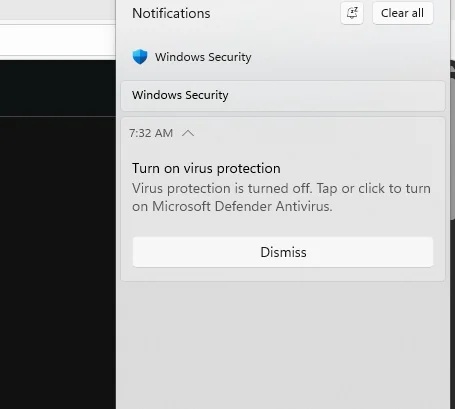
Microsoft has confirmed this issue and stated that after installing the latest Microsoft Defender antivirus update, some devices may display a notification that "Microsoft Defender Antivirus is turned off", but in fact the antivirus software is still running normally and related settings are also displayed as enabled. Microsoft has not announced the specific update version that caused the problem.
Since the system protection function is not actually turned off, users will usually only be taken to the Windows Security Center or Defender's homepage after clicking on the notification, and cannot change any settings. If users have not seen the prompt yet, they may still encounter it in the next few days; users who have already seen the prompt in the notification center may continue to receive similar notifications before Microsoft releases a fix.
Users can choose to ignore or close the notification, but the prompt may appear again. It is understood that this issue is related to the Defender update and affects not only Windows 11 23H2, 24H2 and 25H2, but also Windows 10. The notification also bypasses Windows' regular notification settings, so turning off system notifications or enabling Do Not Disturb mode will not prevent it from appearing.
Microsoft said in an updated support document that any version of Windows or Windows Server may be affected as long as the device is running Microsoft Defender antivirus software and Defender is not suspended. Windows 7 users currently do not experience this issue because the system no longer receives Defender updates. Microsoft said it is releasing a solution through future Microsoft Defender antivirus updates and will provide more information later.
Windows Latest stated that the problem of Defender falsely reporting security warnings was first discovered in early August. The number of related reports has increased significantly in the past few days, and has attracted Microsoft's attention. Microsoft software engineer Jen Gentleman also confirmed about two weeks ago that the company was investigating the matter, but so far there is no official fix.
While Microsoft says this is a false positive, users should not simply dismiss it as an insignificant error. Malware may also trick users into turning off Microsoft Defender or modifying other security settings through fake or misleading security warnings. Therefore, before ignoring the prompt, users should confirm that Defender is indeed running and check that real-time protection is turned on.
The verification method is to open the Windows Security Center and enter the "Virus and Threat Protection" page. If Defender is working properly, you usually won't see related warnings. Users can also click "Manage settings" under "Virus and threat protection settings" to confirm that "real-time protection" is turned on. As for the security prompt asking to enable OneDrive, it is a promotional value-added prompt and can be safely ignored.
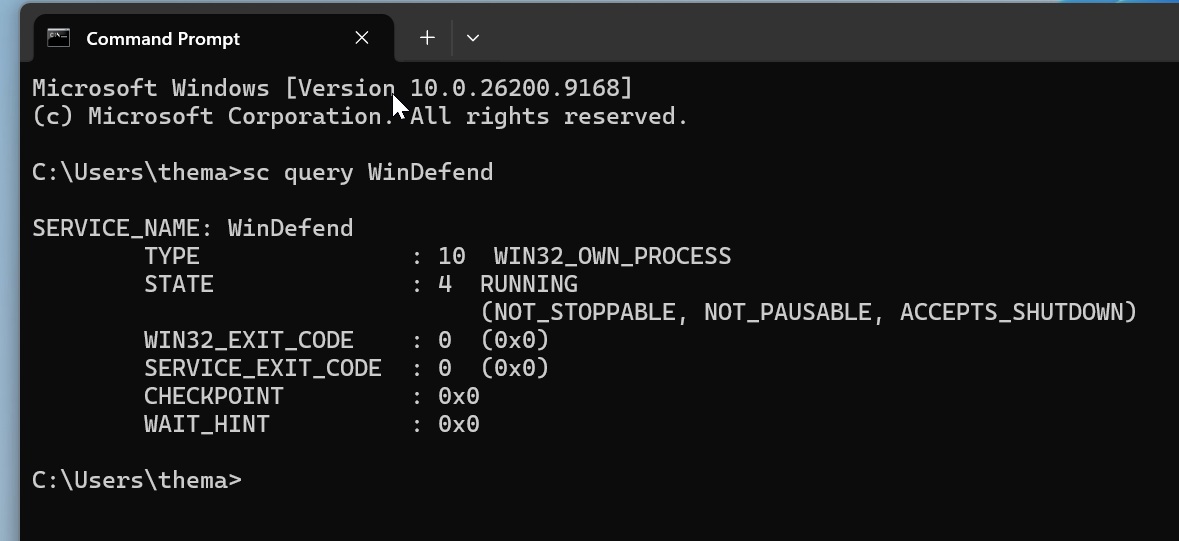
Users can also check whether the Defender service is running through the command prompt. Open the command prompt and enter:
sc query WinDefend
If the Microsoft Defender antivirus service is running, the results should show:
STATE : 4 RUNNING
However, this command can only confirm whether the relevant service is started. To further check if Defender, antivirus, and real-time protection are all enabled, you can run the following command:
powershell -command "Get-MpComputerStatus | Select-Object AntivirusEnabled, RealTimeProtectionEnabled, AMServiceEnabled"
On a properly protected computer, the results should read:
AntivirusEnabled : True
RealTimeProtectionEnabled: True
AMServiceEnabled : True
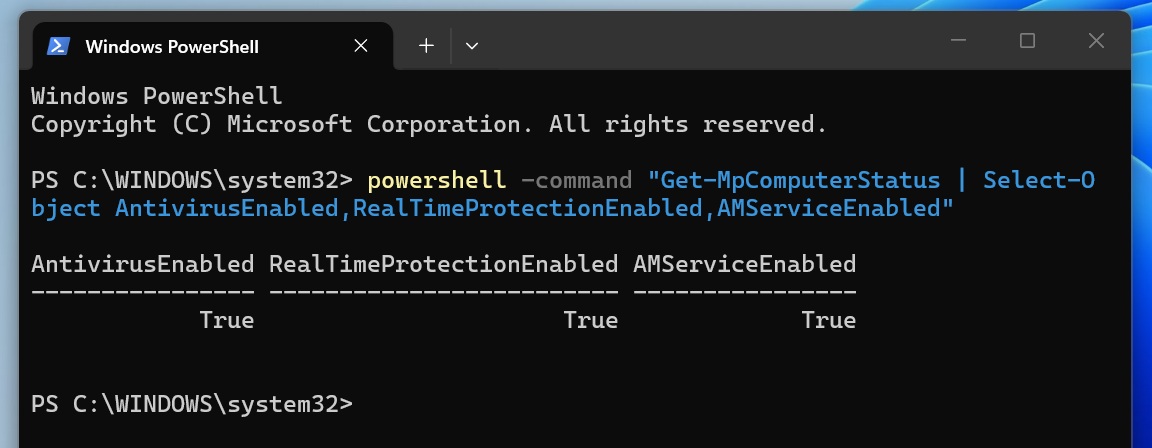
The above commands can be run without starting a terminal as an administrator. If the values of the three items are all True, it means that Windows Defender antivirus and real-time protection are enabled. Even if Windows mistakenly issues an "Enable virus protection" notification, the computer is actually still protected.
Currently, there are other problems in Windows that have been confirmed by Microsoft, including the mouse cursor being abnormal after the Windows 11 update, and the system wallpaper being reset.
Comments