
Abstract:
Many Windows users have long believed that the most complete solution when a computer problem occurs is to shut down and then restart. However, Microsoft’s latest explanation points out that in Windows 11, this intuition is not always correct. Under the default settings, performing a "restart" is often better than simply "turning off and on again" to give the system a true fresh start.
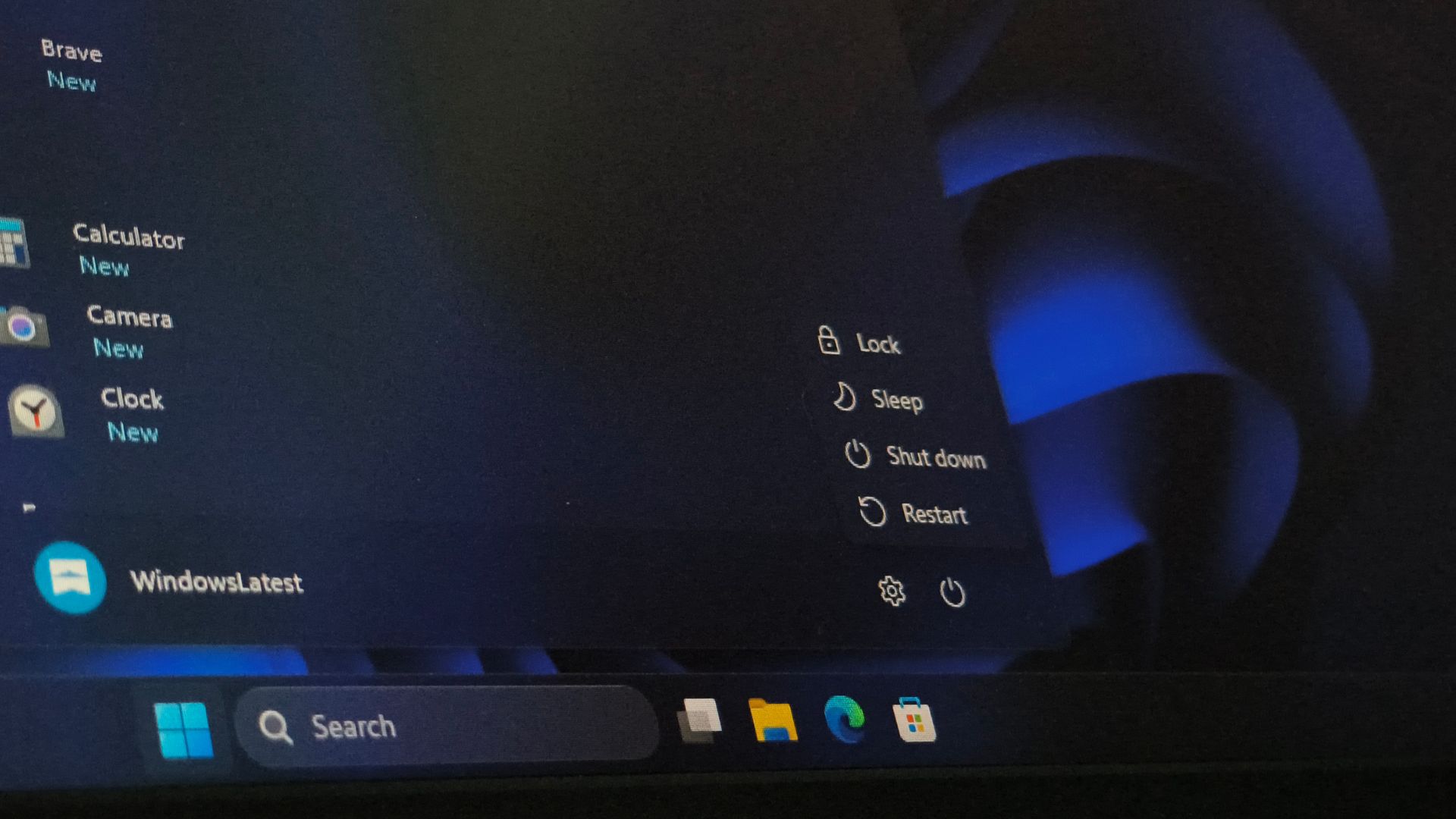
The core reason for this phenomenon comes from the "Fast Startup" function in Windows. This feature was introduced in the Windows 8 era and has been retained as the default setting to this day. Its main purpose is to shorten the computer boot time.
Microsoft introduced that there are currently three main startup methods for Windows, namely complete cold startup, recovery from hibernation and fast startup. Among them, fast startup combines part of the cold start and hibernation mechanisms, so it can achieve faster boot speed.
When the user clicks "Shut Down", Windows will close all applications and log out of the user account, but the system will not completely discard all running status. As part of the fast startup mechanism, Windows will retain part of the core system state and save the kernel and related driver data to the hiberfil.sys file on the hard disk.


Therefore, when the user presses the power button to boot again, Windows does not need to reload the complete system kernel and drivers, but directly restores the previously saved content, thus significantly shortening the startup time.
This means that on the surface, the computer has indeed shut down, but the underlying system has not actually started completely from scratch.
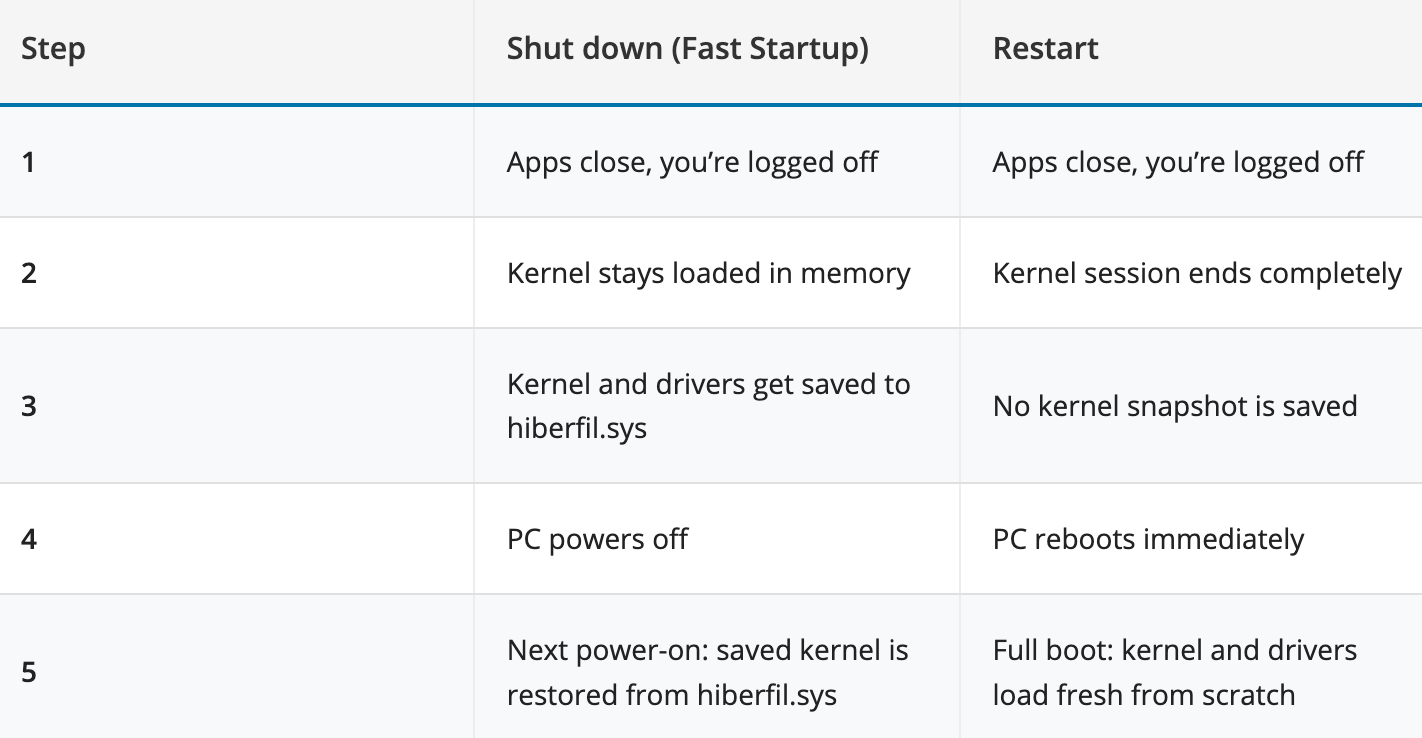
In contrast, "restart" uses completely different processing logic. When performing a reboot, Windows completely ends the current kernel session, does not retain any system snapshots, and does not invoke the fast boot mechanism. The system will then reload the kernel, drivers and underlying components to complete a complete cold boot process.
Because of this, restarting often takes longer than shutting down and restarting in fastboot mode.
Microsoft explained that this is why many system failures can be solved by restarting, but simply shutting down does not work.
For example, when a hardware driver is abnormal, a background service error occurs, or a system component enters an abnormal state, these problems may be saved together in the system snapshot generated by quick startup. The next time the user boots up, the relevant state will be reloaded, so the problem still exists.
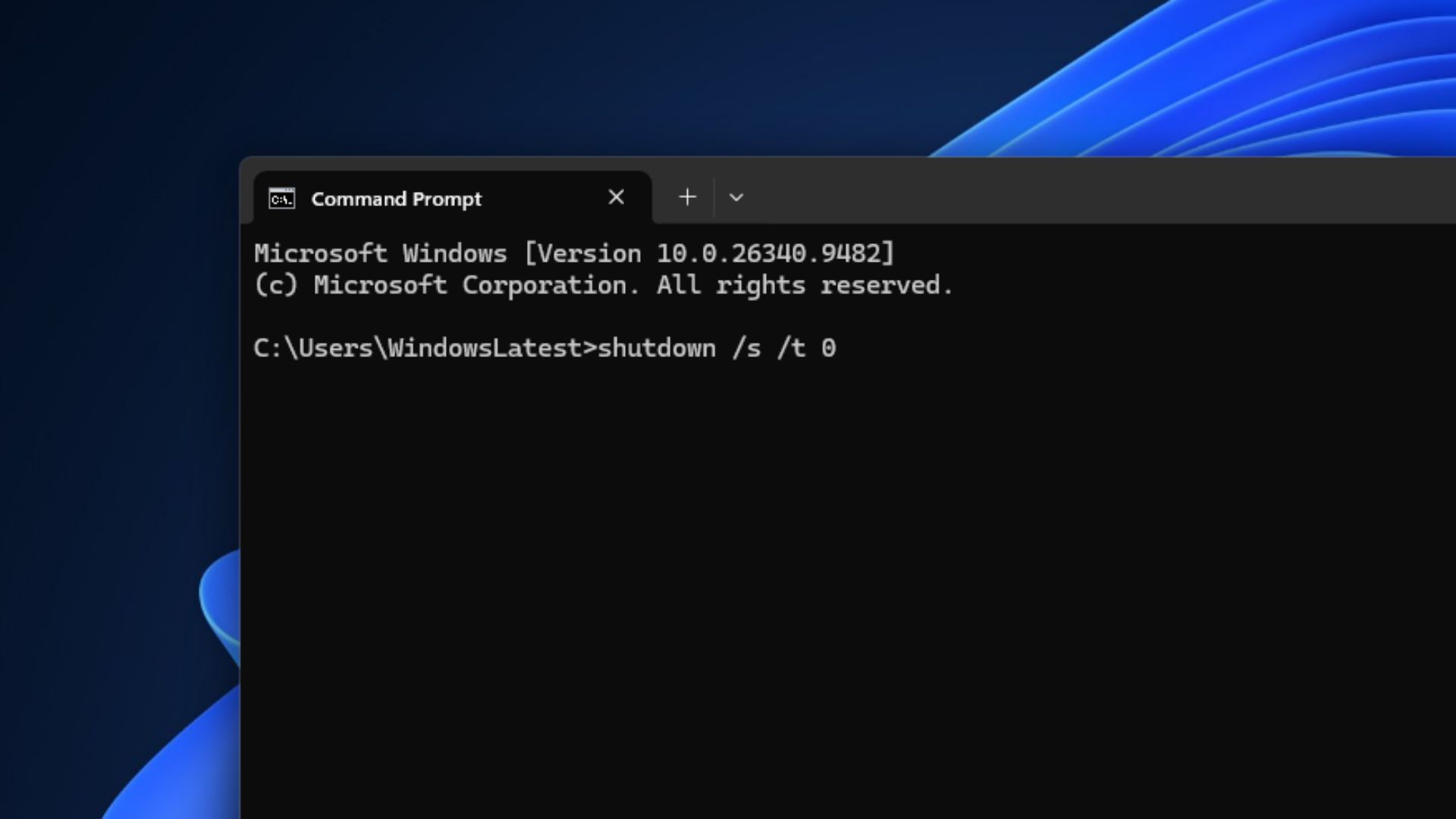
How to force shutdown without enabling Fast Startup
During the restart process, all kernel states will be completely cleared and re-established, so many stubborn faults will disappear.
Microsoft further explained that the Windows system mainly consists of two core parts: the kernel and the driver. The kernel is responsible for managing memory, processes, and hardware resources, while the driver is responsible for allowing the system to communicate with hardware such as graphics cards, wireless network cards, and storage devices.
In fastboot mode, these contents are saved and restored; restarting completely reloads these critical components. Therefore, from a technical perspective, restarting actually provides a more thorough system refresh process than shutting down.
This design was originally born in the era of mechanical hard drives. At that time, computers generally started slowly, and fast startup could significantly shorten the waiting time, so Microsoft promoted it as a default feature. However, with the popularity of SSDs, many users have rarely realized the difference between "shutdown" and "restart" in the underlying operating logic.
Microsoft stated that if users encounter problems such as system lags, driver abnormalities, network failures, unrecognized peripherals, or updates that cannot be completed normally, instead of repeatedly shutting down and turning on the computer, it is better to first try to perform a complete restart.
From the technical implementation of modern Windows, "restart" is the true meaning of completely restarting the system, while "shutdown" is often more like an optimized fast sleep state. Therefore, in Windows 11, the most thorough way to refresh the system is not to shut down the system, but to use the more ordinary-looking "restart" button.
Comments